Crashes, No Sound, or Screen Glitches?
Random freezes, missing sound and display glitches usually trace back to one bad driver. Find and replace yours safely.Free scan · under a minuteWindows Errors? Fix Them Before They Spread
Repair common Windows errors and clear accumulated junk for a smoother, more stable PC - no reinstall needed.Free scan · no reinstallUse Tesla Robotaxi as a passenger service, not as a vehicle you can supervise or take over. Before booking, confirm the app shows your location and current operating hours; at pickup, wait at the designated point and match the arriving car’s license plate to the app; once inside, close the door, buckle up and remain seated. Near a school or crosswalk, treat the vehicle’s stop as only one part of your trip: obey signs and signals, use a marked crossing or crossing guard, watch for children and buses, and never enter a roadway merely because the Robotaxi has stopped.
What Tesla Robotaxi is—and what it is not
Tesla describes Robotaxi as an automated ride service operating in limited areas. The passenger does not drive, supervise the automated system or assume control. The National Highway Traffic Safety Administration (NHTSA) describes Level 4 automation as system driving responsibility within defined service areas, with occupants acting as passengers; that description should not be applied to every consumer vehicle with driver-assistance features. See NHTSA’s automated-vehicle safety overview and Tesla’s Robotaxi instructions.
As an Amazon Associate I earn from qualifying purchases.
Robotaxi does not create a protected path through a school zone. No official source establishes that it detects every child, school sign, stopped bus or pedestrian. Your walking decisions still determine whether the final part of the trip is safe.
What’s actually slowing this PC down?
Pick the symptom - the matching free tool is one click away.
Check availability before you plan a school trip
Tesla’s Robotaxi support page currently lists limited service areas in Texas—Austin, Dallas and Houston—and Florida—Miami, Orlando and Tampa. The app’s map and operating-hours display control whether a ride can actually be requested at your location and time. Coverage boundaries and hours can change, so check them immediately before leaving rather than relying on an older screenshot or a previous ride.
#1 Best Overall

- UPSCALED 4K FRONT + 1080P REAR DUAL DASH CAM: The ROVE R2-4K DUAL records the road ahead and behind at the same time. The front camera captures at 2.5K (QHD) and intelligently upscales to 4K (2160P) for higher-detail playback, while the rear camera records at Full HD 1080P. This is upscaled 4K, not native 4K, engineered to show sharper everyday detail than standard 1080P dash cams, so you can read license plates, signs, and surroundings in front and rear footage.
- SONY STARVIS 2 IMX675 SENSOR + SUPER NIGHT VISION: The front camera uses a Sony STARVIS 2 IMX675 5MP image sensor with a wide F1.5 aperture (F1.8 rear) and HDR to pull in more light for clearer low-light footage. This advanced sensor enhances nighttime clarity, helping capture license plates, road signs, and surrounding vehicles with greater reliability when driving after dark, through tunnels, or in dusk and dawn conditions.
- ULTRA FAST 5.8GHz WIFI/ UP TO 20MB/s DOWNLOAD SPEED: With its built-in dual-band 5.8GHz and 2.4GHz WiFi, you can use the ROVE dash cam app to view and manage dash cam recordings instantly on your iPhone and Android smartphone. Using the ROVE app, download your recorded videos directly to your smartphone at up to 20 MB/sec, then easily share them on social media with friends and family. Additionally, manage camera settings and update the latest firmware over-the-air via the ROVE App.
- CAR CAMERA WITH GPS: The new front and rear dashcam comes with built-in GPS, which enables you to view real-time live speed and compass on the 3” IPS wide camera screen. It records precise driving routes, locations, and speed stamps directly on the video so you can watch dashcam videos with GPS data using ROVE's free GPS Player on your PC or Mac & get additional evidence when you need it.
- FEATURES WITH STATE-OF-THE-ART TECHNOLOGY INCLUDED: Experience peace of mind with this front and rear car dash cam. It comes with a free 128GB microSD card and offers advanced features such as an f1.5 aperture, motion detection, G-sensor, seamless loop recording, emergency video lock, screen saver, live speed and compass direction, voice guidance, ring of threads for optional CPL filter, a built-in supercapacitor for extended product life, support for up to 1TB microSD cards, and many more.
| Region listed by Tesla | What to verify in the app |
|---|---|
| Austin, Texas | That your pickup and destination pins are inside the active service area and that rides are available at your intended time. |
| Dallas, Texas | That both locations are covered; the map boundary, not the city name alone, determines eligibility. |
| Houston, Texas | That the requested route is accepted during the displayed operating hours. |
| Miami, Florida | That your exact pickup point is within the current map and that service is operating. |
| Orlando, Florida | That the app accepts the school, bus stop or other destination you entered. |
| Tampa, Florida | That the map and hours shown for your account cover the planned trip. |
Tesla’s current support information is at tesla.com/support/robotaxi. The page, rather than a general statement that a city is served, is the authoritative check for a particular ride.
Plan a pickup and drop-off that do not create a crossing problem
A school address is not automatically a safe curb location. Before requesting the ride, look at the walking route from the proposed pickup or destination point. Prefer a legal curb or designated loading area on the same side of the road as the entrance you need, so you do not have to cross a multilane road, weave through a bus queue or walk between parked cars.
- Use the app’s designated pickup point and any signs or instructions at that location.
- Avoid a point that would place you in a bus-only lane, a fire lane, a driveway, a crosswalk, or a place where stopping is prohibited.
- For a destination near a school, identify the marked crossing, pedestrian signal or crossing guard before the ride begins.
- Allow extra time for school arrival and dismissal traffic; a point that is practical at midday may be congested when children and buses are present.
- If the only suggested point requires an unsafe crossing, choose another legal point or do not request the ride.
Local school-zone, crosswalk and school-bus rules differ by state and municipality. The available Tesla and NHTSA material does not establish a single speed limit, stopping distance or bus-passing rule for all six service cities. Check the current official rules for the city and state before giving yourself a legal instruction.
How to confirm and enter the correct Robotaxi
Do not enter a vehicle solely because it resembles the car shown in the app. Tesla’s passenger instructions require a designated pickup, a license-plate match and a secure boarding sequence.
- Request the ride in the Robotaxi app. Confirm the pickup pin, destination and any displayed arrival instructions.
- Go to the designated pickup point. Stay where you are visible to the arriving vehicle and away from moving traffic, bus lanes and curb edges.
- Check the license plate. Compare the full plate on the arriving vehicle with the plate displayed in the app. If they do not match, do not open the door or enter; use the app’s support option.
- Check the surroundings before opening the door. Watch for bicycles, buses, turning vehicles and children moving between cars.
- Enter only after the vehicle is stopped and the door is available. Close the door completely.
- Fasten the seatbelt. Tesla’s rider materials and terms require occupants to use the seatbelt.
- Start the trip. Use the app or the vehicle touchscreen as instructed. If the controls do not match the instructions or the trip does not start, remain seated and contact support rather than attempting to drive.
The Cybercab Rider Guide describes vehicle identification, pickup and drop-off cues, including the vehicle’s parked hazard-light indications. Tesla’s terms also set out rider obligations, including seating and seatbelt requirements.
What to do during the ride
Stay seated and belted
Remain in your seat with the seatbelt fastened for the entire trip. Do not stand to look for a school entrance, move between seats, open a door while the vehicle is moving or attempt to operate the vehicle. Keeping the belt fastened matters even on a short trip through a school area, where stops and turns can be frequent.
Rank #2
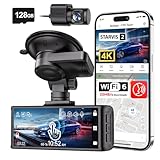
- [4K+1080P Dual Recording] REDTIGER F7N TOUCH captures your drive journey in stunning 4K UHD resolution with STARVIS 2 sensor 170° wide-angle view for the front dash cam and 1080P FHD resolution 140° wide-angle for the rear car camera. Equipped with WDR and HDR technology, the enhanced super night vision ensures better visibility even in low-light situations, providing you with reliable recordings day and night.
- [Voice Control & Touch Screen] F7NTOUCH dashcam features voice commands, allowing for hands-free control of your 4K car camera, which enhances safety by minimizing distractions. The dual camera dash cam also has smart touchscreen that can lock emergency video, turn on wifi, and capture scenery with one click. Redtiger also retains the buttons, multiple control methods are integrated.
- [Built-in GPS & 5.8GHz WiFi] Both Android and IOS users can connect to dashcam WiFi via the REDTIGER Cam app. Although the dash cam is installed wired, you can enjoy wireless control on your smartphone, faster 20MB/s download speed and share your driving experiences in real-time with friends and insurance companies. Car recorder built-in GPS provides traceable location, speed, and accurate route in the recordings.
- [Loop Recording & G-Sensor] REDTIGER F7N TOUCH dual channel dash cam automatically overwrites the oldest footage when the memory is full, ensuring endless recording with the included 128GB card. With a built-in G-sensor that detects sudden movements or impacts, it automatically locks and protects the associated footage when an event is detected on the road, ensuring it won't be overwritten during loop recording.
- [24-hour Parking Monitoring*] REDTIGER Car dashboard camera offers G-Sensor Parking Mode that automatically record when it detects any collisions or sudden motion while vehicles is parked. Time Lapse Parking Mode provides continuous surveillance by offering a condensed overview of any events that may occur during parking periods. *Please note that the parking monitoring function requires a separate hardwire kit.
Use the passenger controls when you need help
The app and touchscreen provide trip information and access to support. If you need to end the ride early or have a safety concern, use the available Pull Over or stop control and then contact support. Tesla’s support instructions are at Get Support With Robotaxi. A stop request is a passenger-control action; it is not permission to open the door into traffic.
Free tools Windows power users keep installed
One-click scans. No signup required.
Do not treat automation as a guarantee
A Robotaxi’s operation in a limited service area does not mean it will recognize every child, bus, sign or unusual crossing situation. Keep your attention on the trip and be ready to use support if the vehicle’s behavior, route or displayed information does not look right. You still remain responsible for safe conduct when entering or leaving the vehicle and while walking.
If the Robotaxi stops near a school, bus stop or crosswalk
An unexpected stop can be a normal traffic response, a pickup or drop-off maneuver, or a problem requiring support. First remain seated and observe the app and touchscreen. Do not exit into a travel lane or assume the stop makes nearby traffic safe.
- Check whether the vehicle is at the requested destination or a designated safe stopping point.
- Look for a displayed message, hazard-light cue or support instruction.
- If you need assistance or the ride appears stuck, use the app or touchscreen’s Support function.
- If the vehicle is stopped in a dangerous position, use Pull Over or the stop control as directed by Tesla’s interface, then follow support instructions.
- Open a door only when the vehicle is fully stopped and the door instruction indicates it is safe to leave.
At a school, a stopped vehicle can block sight lines for children, drivers and crossing guards. If you exit, move to the sidewalk or other safe pedestrian space before deciding how to continue. Never step around the front or rear of a stopped bus without checking the crossing route and traffic controls.
How to cross safely after a Robotaxi drop-off
Wait until the vehicle has parked and follow its door instructions. Once outside, the Robotaxi no longer controls your movement. Use the pedestrian route provided at that location: sidewalk, marked crosswalk, pedestrian signal and, where present, a crossing guard.
Do these 3 things before closing this tab:
1Fix the driver behind crashes, sound loss and screen glitches2Clear out junk files and repair common Windows errors3Scan for outdated or missing drivers - takes under a minute- Stop at the curb and look for vehicles turning across the crossing, including vehicles approaching from behind the stopped Robotaxi.
- Cross only on the signal or at a lawful marked or otherwise permitted crossing under local rules.
- Keep looking while crossing; a driver in another lane may not see you because the Robotaxi is blocking the view.
- Do not enter the roadway simply because the Robotaxi has stopped, its hazard lights are on or you believe its sensors have noticed you.
- At an uncontrolled crossing, choose a place with the clearest sight distance and wait for a safe gap rather than relying on another vehicle to yield.
- Keep children close, avoid phone distraction and do not let a child run ahead between parked vehicles.
A vehicle stopping for your drop-off is not evidence that every lane is clear. The safe decision comes from the signs, signals, crossing personnel, visibility and traffic you can observe.
Rank #3

- 4-Channel Dash Cam for Complete Vehicle Coverage: This dash cam is equipped with four Full HD 1080P cameras, capturing footage of the front, rear, left, and right sides of your vehicle simultaneously. The adjustable front cameras enhance visibility and offer flexible recording angles, including interior footage.
- Time-Lapse Recording & Parking Mode: With time-lapse recording, 60 minutes of footage is compressed into 1 minute, saving memory card space. Activate parking mode with the optional ACC hardwire kit (sold separately) for security when your vehicle is parked.
- Enhanced Night Vision & WDR Technology: The dash cam features advanced night vision and Wide Dynamic Range (WDR) technology for clear, balanced footage, even in low-light conditions. Eight infrared lights ensure optimal visibility, and WDR adjusts exposure to capture detailed images in varying lighting.
- Optional GPS for Real-Time Vehicle Tracking: Purchase the GPS logger (sold separately) to add location, speed, and time tracking, providing a visual representation of your vehicle's route. This feature is perfect for documenting travel details in case of incidents.
- 5GHz Wi-Fi & App Integration: Share videos easily via Wi-Fi using the mobile app for both iOS and Android devices. This feature allows for quick video downloads and sharing on your preferred platforms.
Walking around school buses and bus stops
NHTSA’s school-bus guidance treats students as pedestrians moving to and from stops and emphasizes visibility and use of crossing protection. It describes a 10-foot danger zone on each side of a stopped school bus. Stay outside that zone unless you are following a clearly controlled boarding or crossing procedure. NHTSA states: “Student safety should be the top priority when determining school bus routes and stops.” That statement concerns school-bus route planning, not Tesla system performance; see NHTSA’s Planning for Safety guidance.
For a Robotaxi passenger, the practical implications are straightforward:
- Do not ask for a pickup or drop-off that puts you in the bus’s loading area or forces you to walk through the danger zone.
- Wait until you have a clear, supervised crossing route before moving past a bus.
- Assume children may appear from behind a bus or parked vehicle and slow your own walking pace accordingly.
- Follow the crossing guard’s directions and local signs even if the Robotaxi’s route or stop appears convenient.
- Do not cross behind a bus where its body hides you from approaching traffic.
What to do after an unexpected stop or collision
Unexpected stop without a collision
Remain belted and use Support in the app or touchscreen. If the vehicle offers a Pull Over or stop control, use it as directed. Do not force a door, leave into traffic or attempt to solve the situation by taking control of the vehicle. Tell support your location and the nearby landmark shown in the app.
Collision
Tesla instructs riders to exit and move to a safe place if they can do so safely, and to call 911 when anyone needs emergency assistance. If the vehicle continues moving after the collision, use Pull Over and contact Tesla support. Once outside, stay away from traffic and damaged vehicles, and follow emergency dispatchers and responders. Tesla’s incident instructions are available at Tesla Robotaxi support; responders can also consult Tesla’s Robotaxi first-responder information.
- Check yourself and other occupants for urgent injuries without delaying a needed emergency call.
- Call 911 if anyone needs medical, fire or police assistance, or if the location is dangerous.
- If leaving is safe, move behind a barrier or to another protected place away from moving traffic.
- Follow dispatcher and responder directions, even if they differ from the normal ride procedure.
- Use Tesla support for the ride record and follow-up after immediate danger has passed.
Quick decisions for common school-area situations
| Situation | Safest passenger response |
|---|---|
| The plate does not match the app | Do not enter. Stay at the designated point and contact support. |
| The pickup point is across a busy road | Do not cross to reach the car unless you can use a lawful, controlled crossing. Choose a safer legal pickup point if available. |
| The vehicle stops beside a school bus | Remain seated until the vehicle is parked and a safe exit is available; stay outside the bus danger zone when walking. |
| The Robotaxi stops before the destination | Check the app and touchscreen, use Support or Pull Over as directed, and do not exit into traffic. |
| The car has been in a collision | Exit only if safe, move away from danger and call 911 for emergency help; use Pull Over and support if the vehicle keeps moving. |
| You reach the destination but the crosswalk is blocked | Wait for a clear route or use another marked crossing. A stopped Robotaxi does not make the blocked crossing safe. |
Limits you should keep in mind
There is no substantiated official statistic establishing Robotaxi performance specifically around school zones, school buses or crosswalks. Do not infer such a performance rate from general crash data or from the fact that the service is available in a particular city. Availability, operating hours, pickup boundaries, rider terms and app controls can change; check Tesla’s current pages and the app before each planned trip.
The most reliable safety model is a division of responsibilities: Tesla’s system handles the automated driving within its service limits, while you verify the vehicle, stay belted, use passenger controls and make careful pedestrian decisions after—or before—the ride. Around schools, visibility, lawful crossings and attention to children and buses matter more than the vehicle’s presence at the curb.
Quick Recap
Product prices and availability are accurate as of the date/time indicated and are subject to change. Any price and availability information displayed on Amazon at the time of purchase will apply.




