What’s actually slowing this PC down?
Pick the symptom - the matching free tool is one click away.
You can use an iPhone or iPad as the navigation and media screen in your car without using CarPlay. The device stays mounted in view, while the car supplies power and sends sound through Bluetooth, USB audio, or an auxiliary input.
The important distinction is that this is not CarPlay on a different screen. An iPad cannot run CarPlay, and the iPhone or iPad will not appear on the car’s factory display. Your Apple device remains the display; the vehicle mainly provides speakers, steering-wheel controls where supported, and charging.
As an Amazon Associate I earn from qualifying purchases.
Choose the right Apple device
| Device | What it does well | Main limitation |
|---|---|---|
| iPhone | Cellular data, GPS, phone service, Siri, navigation, and music in one device | Smaller screen than an iPad |
| iPad Wi-Fi + Cellular | Larger navigation and media screen; includes GPS | Requires a cellular plan or hotspot for live services unless maps are downloaded |
| iPad Wi-Fi-only | Large, inexpensive screen for downloaded maps and media | No cellular modem or GPS; live traffic and online searches need Wi-Fi or an iPhone hotspot |
A Wi-Fi-only iPad can still show your position when Wi-Fi-based location information is available, but it does not have the GPS hardware found in iPhone and Wi-Fi + Cellular iPad models. For dependable in-car navigation, a cellular iPad or iPhone is the better choice.
The Tool Desk
Outbyte Driver Updater FREEFix the driver behind crashes, sound loss and screen glitchesFind Drivers →Outbyte PC Repair FREEClear out junk files and repair common Windows errorsFree Scan →1. Mount the device safely and provide power
Fit the mount before you start driving. It should hold the device firmly without blocking the windshield, gauges, airbags, climate controls, gear selector, or your view of traffic. Phone and tablet-mount rules vary by state, so check local law before installing a large iPad on the dashboard or windshield.
#1 Best Overall
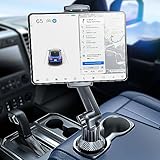
- 👍【Stable & Durable Tablet Holder】:This iPad holder is designed to be installed in your car's cup holder for easy use. We have increased the weight of the tablet stand's base. We have also utilized a more durable Premium Military-grade PTFE material, making the iPad car mount even more resilient and long-lasting. 3 Extension Pads allow the car tablet holder base to expand its diameter up to 3.9 inches. Please ensure your car cup holder's diameter falls between 2.5" and 3.9" before purchasing.
- 👍【Extra Deep & Large Clamp】:With a maximum depth of 1.57” (40MM) and a maximum opening width of 9.6” (245MM), eSamcore tablet car mount can securely hold any iPad or cell Phone with a super thick protective case. The clamps come with protective soft silicone pads, which prevent your iPad from being damaged while being securely held. With our car iPad holder’s robust and sturdy design, you can trust that your tablet will stay firmly in place while driving, even on bumpy roads.
- 👍【Foldable 15" Height Car iPad Holder for Cup】: The total height of this eSamcore tablet cup holder mount is 15". You have the freedom to adjust the height of the cup holder iPad mount according to your needs. The clamp can rotate 360 degrees, offering optimal flexibility. The reinforced arm ensures the stability and durability of the iPad car mount cup holder. Compared to gooseneck iPad cup holder, our rigidly connected arm iPad holder provides even better stability.
- 👍【Compatible with 6"-12.9" Tablet & Cell Phone】: This eSamcore iPad holder for car is compatible with all 6" – 12.9" devices, such as iPad 9.7" / 10.2". Fit For iPad Air 9.7" /10.5" /10.9", iPad Mini 3/ 4/ 5/ 6, iPad Pro 9.7"/ 10.5" /11" /12.9". Fit For kindle fire 2023, Fire 10, For Nintendo Switch, Compatible for Samsung Galaxy Tab A7 A8, S6, S7, S8, Android tablet. Also fit cell phone such as iPhone 14, 13, 12, Pro, Pro Max, Mini, galaxy s23/ S22 ultra, z fold 3/ 4.
- 👍【iPad car mount suitable for high-temperature climates】: Perfect for hot climate areas like AZ and TX. This eSamcore tablet holder for car cup holder eliminates worries about the high temperature melting the adhesive of traditional sticky tablet car mount. It keeps your dashboard clean and tidy; ensuring cup holder iPad mount never blocks your view of the road or obstructs your air vent.
Use a reliable vehicle power source and a suitable data or charging cable. Some factory USB ports provide only low-power charging, and a loose cable can cause charging to stop while navigation and screen brightness continue to drain the battery.
Do not leave the device in direct sun or inside a hot parked car. Navigation, high brightness, cellular data, and charging can generate considerable heat. If charging stops or the screen dims, move the device out of the sun, improve airflow, lower brightness, and let it cool.
2. Get internet access in the car
Use an iPhone’s cellular connection
An iPhone can use its own mobile data for live traffic, online searches, streaming music, and changing routes. Leave cellular data enabled if you need those features.
Free tools Windows power users keep installed
One-click scans. No signup required.
Use a cellular iPad
A Wi-Fi + Cellular iPad can use its own mobile plan. To check whether your carrier supports adding service, open:
Settings > Cellular Data > Join iPhone Plan
The exact availability depends on the carrier and iPad model. A cellular plan is not required for the iPad’s GPS to function.
Connect a Wi-Fi iPad to an iPhone hotspot
- On the iPhone, open Settings > Personal Hotspot. On some versions or carrier configurations, the setting is under Settings > Cellular > Personal Hotspot.
- Turn on Allow Others to Join.
- Keep Wi-Fi and Bluetooth enabled on the iPhone and keep the devices near each other.
- On the iPad, open Settings > Wi-Fi.
- Tap the iPhone’s name and enter the hotspot password if requested.
Personal Hotspot requires carrier support and may count against your data allowance. If the iPad cannot see the iPhone, confirm that Allow Others to Join is enabled and that both devices have Wi-Fi and Bluetooth turned on.
Rank #2

- Powerful Tablet Clamp: Thicker and tighter clamp of car ipad holder can provide a greater grip to hold all 6" to 11" diagonal tablets(The maximum opening distance of the clamps is 9 inch). Extended side arms with soft rubber pads make eSamcore ipad car mount suitable for tablet with normal protective case(Thickness below 0.9 Inch). Anti-slip silicone pad of clamp prevents iPad slipping from car tablet holder when driving on the bumpy road. Good car accessories gift and travel essentials for family!
- Wide Compatibility: This eSamcore tablet holder for car dashboard is compatible with all 6" - 11" devices, such as iPad Pro 9.7/10.5/11, iPad Air 9.7/10.5/10.9, iPad, iPad Mini 2/3/4. All Samsung Galaxy Tab, Android tablet, large screen cell phone such as folding Phone, z fold 3, iPhone 13, iPhone 12, Galaxy S21/S21 Plus/S21 Ultra, Galaxy Note 20/20 Ultra S20/S20 Plus/S20 Ultra, iPhone 11 Pro Max, iPhone Xs Max, iPhone 12 Pro Max.
- Unobstructed View iPad Car Holder: With upgraded downward extending mount arm, eSamcore dashboard iPad holder for car will not block your view of the road. You can adjust the tablet car mount arm up and down in 140° through the security lock to fit your dashboard. With 360°rotating ball joint, eSamcore iPad mount for car can also be switched between portrait and landscape view.
- Suction Cup Tablet Car Mount: Simple 3-step lock mechanism provides extremely strong suction power for our eSamcore tablet car holder. The suction cup is coated with a layer of sticky gel to prevent air gaps generation. ❤️️ A flat and clean surface will create a stronger suction power for ipad holder. ❤️️Before installation, Please clean the dashboard and dry it completely.
- Reusable Suction Cup: Our eSamcore tablet holders are made of durable engineered plasticThe suction cup is reusable and washable. If the surface of the suction cup is dirty or lost its stickiness, please rinse it in water and leave the suction cup to dry completely. After that, the suction cup of car tablet mount will restore the stickiness.
3. Use Apple Maps on the mounted screen
On either an iPhone or iPad, start a route as follows:
- Open Maps.
- Touch and hold a location on the map, or enter a destination in the search field.
- Tap Directions or choose the driving mode.
- Select a route.
- Tap Go.
For accurate live positioning, open Settings > Privacy & Security > Location Services, select Maps, and allow location access. Leave Precise Location enabled if you want the most accurate position.
Online directions also need an internet connection. That means a Wi-Fi-only iPad that worked at home may stop updating as soon as it leaves the home network unless it connects to a hotspot or has maps downloaded.
4. Download maps before you leave
Offline maps are the most useful solution for a Wi-Fi-only iPad, weak cellular coverage, or a trip through rural areas. On supported current iPhone and iPad software:
- Open Maps.
- Tap your picture or initials beside the search field.
- Tap Offline Maps.
- Tap the Add button.
- Search for a town or destination, or tap Current Location.
- Resize the highlighted area so it covers the complete trip.
- Tap Download.
Download the full area you need, including the route’s origin, destination, and likely detours. A map downloaded for one city is not automatically a nationwide map.
Do these 3 things before closing this tab:
1Clear out junk files and repair common Windows errors2Fix the driver behind crashes, sound loss and screen glitches3Repair Windows errors before they cause bigger problemsOffline maps can provide supported turn-by-turn driving directions, estimated arrival times, and some place-card information without cellular or Wi-Fi service. They do not provide every online feature: live traffic, current searches, streaming content, and other network-dependent services may be unavailable. Offline-map availability also varies by country and region.
Rank #3

- 【 Unique Biaxial Extension Arm】 Twist the extendable arm in different angles allowing you to change the view distance, great for enjoying entertainment with family and friends; The articulating arm is easy to pull out or retract as needed, kids can also operate easily
- 【 Metal Crossbar for Headrest】 Out of a considerate thought, the hook's depth on both ends of the tablet car mount is deeper, the headrest mount which is made of high-quality metal also helps greatly increase the stability during driving; The anti-slip rubber pads protect the tablet from scratching and slipping, keep your device safe
- 【 Easy Installation & 360° Rotation】 Normally it only takes 5s to complete the installation, no tools are needed; The 360 degree rotating ball allows you to find the best view angle so kids don't have to look down the whole time, avoid neck pain, making it a great car accessory for kids
- 【 Devices Compatibility】The universal headrest tablet mount is suitable for 4.7 - 11" devices, such as 2025/ 2024/ 2022 iPad Pro 11, 2022 iPad 10.9/ iPad 10th Generation, iPad Air 6, iPad Pro 10.5/ 9.7, iPad Mini, Galaxy Tab S10/ S9, Kindle, Fire HD, iPhone Air, 18 Pro Max, 17, 16, 15, 14, 13, 12, Galaxy S25 Ultra, other smartphones and tablets; The max thickness the clip can fit is 0.67" (17mm), 4.7 - 11" refers to the diagonal length of the tablet screen, the suitable width of screen is 5.5 - 8.6"
- 【 Wider Headrest Compatible】 This new version can fit headrest with narrower rod distance, the adapted distance range of headrest rods is 2.8" ( 72 mm) - 5.9" ( 150 mm), which can fits SUV, Pickup truck, Sedan and more; NOTICE: can't fit the backseat without headrest rods
To manage downloads, go to Maps > your picture or initials > Offline Maps. Depending on the device and region, you may see settings such as Automatic Updates, Optimize Storage, and permission to use cellular data for downloads.
5. Send navigation and music through the car speakers
Bluetooth audio
- Put the car stereo into Bluetooth pairing or discovery mode.
- On the Apple device, open Settings > Bluetooth and turn Bluetooth on.
- Tap the vehicle’s name when it appears.
- Confirm the pairing code or enter the requested PIN.
The car’s manual determines the exact pairing procedure. Once paired, start audio in Music, Podcasts, or another app. If sound comes from the iPhone or iPad instead of the car, start playback, tap the Playback Destination button, and select the vehicle’s Bluetooth connection. You can also change the destination from the Lock Screen or Control Center.
Make sure the stereo is set to its Bluetooth or media source. A phone can be correctly paired while the stereo is still playing FM radio, USB, or another connected device.
USB playback
If the vehicle supports USB audio, connect the iPhone or iPad with a compatible data cable, unlock the device, and select the car’s USB or media source. Not every USB socket does the same job: some charge only, some support media playback, and some are intended specifically for CarPlay.
A USB port marked with a CarPlay icon may automatically launch CarPlay when an iPhone is connected. That does not mean it will display an iPad. The iPad remains a standalone screen.
If USB audio fails, try these fixes:
- Unlock the device and leave it on the Home Screen.
- Try another cable and another USB port.
- Restart both the vehicle and the Apple device.
- Check the charging port for lint, debris, or damage.
- Select USB or media as the car’s active source.
- Try another audio app.
- Update the Apple device and the vehicle’s stereo firmware.
Auxiliary input
If the car has a 3.5-mm auxiliary input, connect the device with the appropriate adapter and cable, then select AUX on the stereo. An auxiliary connection usually carries sound only, so the device still handles navigation, playback, and controls.
Rank #4

- Fits: Removable headrests with metal posts (0.4″–7.1″ apart). ⚠️ Doesn't Fit: Fixed headrests Tesla Volvo Chevy Tahoe/Suburban GMC Yukon/Sierra Honda Pilot/CR-V Jeep Wagoneer. Need help? Check your headrest for 2 Round metal poles
- Enhanced Road Trip Entertainment: Positioned to keep everyone happy on long road trips, play soothing videos and educational videos. Television device car essentials ipad holder for car, kids can also operate easily
- 2026 New Upgrades Toddler Kids Car Activities: 4-Axis 360 with Fixed Knob Folding Shrinking Design, the top choice for family-oriented luxury sedans. The tablet holder can securely hold an iPad or tablet, allowing kids to watch early learning videos, soothing music, or calming audio content
- Sturdy and Safe Design: Reducing distractions for the driver, keep your device safe. Car accesorios para carro ipad car mount hold tablet securely during bumps, fixed nut hook's depth on both ends of the tablet car mount is deeper, increasing the 3X stability during driving. Works seamlessly with convertible car seats (rear-facing and forward-facing), making it a car accessory for kids aged 0-10 years
- Optimal Viewing Angle Adjustment: Car TV for back seat ensures the tablet or screen is always at the optimal viewing angle for your toddler or baby. The arm can rotate and tilt in three axes (up/down, left/right, and forward/backward), allowing for screen positioning no matter the child's height or seating position
6. Use Siri without CarPlay
If the car supports Siri Eyes Free, connect the iPhone over Bluetooth and press and hold the steering-wheel voice-command button until Siri responds. The button’s behavior varies by vehicle.
Without CarPlay or Siri Eyes Free, a mounted iPhone can still respond to “Hey Siri” if Siri and voice activation are enabled. Siri can start navigation, make calls, send messages, and control audio, but performance depends on permissions, the app being used, network access, and the way the car handles its Bluetooth microphone and speakers.
Independent reader supportYour contribution helps us test, update, and keep practical guides available for everyone.7. Enable Driving Focus
Driving Focus can limit notifications while the iPhone or iPad is being used as a standalone car screen. Set it up at:
Settings > Focus > Driving
Under Settings > Focus > Driving > While Driving, you can choose:
- Automatically
- When Connected to Car Bluetooth
- Manually
- Activate With CarPlay
You can also configure allowed notifications and Auto-Reply. To turn it on manually, open Control Center, touch and hold Focus, and tap Driving.
Quick wins for a faster PC:
Repair Windows errors before they cause bigger problemsFix Now →Scan for outdated or missing drivers - takes under a minuteDriver Scan →Driving Focus reduces interruptions but does not make interacting with a screen safe or override distracted-driving laws. Set the route and playlist before moving, and pull over when you need to change settings.
Best Value

- Note: Any device even iPhone 17/16/15/14/13/12 must use the included metal plate. Tips: Pasting on the Flat and Smooth Surface will be Better
- 【2-PACK Super Magnetic Phone Holder】: This magnetic mobile phone holder has 8 super magnets, which can generate strong magnetic attraction and firmly hold any of your mobile devices. The generation of a closed magnetic field will not affect the telephone signal. You can completely free your hands, allowing you to drive with peace of mind.
- 【SUPER STICK FORCE】: VHB adhesive provides strong stick force between the dashboard and the car phone holder, which can firmly stick to any plane in the car, fix your device, adapt to a variety of road conditions such as sudden braking, speed bump, and rugged mountain road.
- 【SAFE DRIVING VIEW】:Mini-size, not taking up space, it is placed in the dashboard without blocking the view at all, and does not need to look down at the device to ensure your safe driving.
- 【360 ° Rotation】: This phone mount for car can rotate 360 degrees, you can rotate it and adjust the angle of the phone holder to provide the best viewing angle. The phone can be placed and taken out with one hand, and the phone menu can be easily operated. Our magnetic car holder is elegant and small, so you can share the car holder with your friends, family.
Common problems and fixes
| Problem | Likely cause | Fix |
|---|---|---|
| iPad reports no GPS or shows an inaccurate location | The iPad is Wi-Fi-only | Use an iPhone or cellular iPad, or rely on downloaded maps and expect less accurate location behavior |
| Maps worked at home but not in the car | The iPad was using home Wi-Fi | Connect to an iPhone hotspot, use cellular service, or download offline maps |
| Bluetooth is paired but there is no sound | The wrong playback destination or stereo source is selected | Choose the car under Playback Destination and select Bluetooth/media on the stereo |
| Bluetooth stops reconnecting | The accessory was disconnected, pairing data is stale, or another phone took priority | Use Settings > Bluetooth, restart both devices, put the car into discovery mode, then forget and pair again if necessary |
| CarPlay launches unexpectedly | The iPhone is connected to a CarPlay USB port or configured for wireless CarPlay | Use a charging-only connection, another USB port, or manage the vehicle at Settings > General > CarPlay |
| USB charges but does not play audio | The port or cable supports power only | Try another cable or port, unlock the device, select USB/media, and check the vehicle manual |
| Music or navigation pauses when the engine starts | The stereo changed sources or connected to another paired phone | Select the Apple device as the active source and remove unused paired phones |
| The device gets hot | Sunlight, charging, high brightness, navigation, and cellular data are combined | Move it out of direct sun, lower brightness, improve ventilation, and let it cool |
What this setup cannot do
- An iPad cannot run CarPlay over USB or wirelessly.
- The iPhone or iPad screen cannot be duplicated on the car’s factory display by simply pairing it.
- A Wi-Fi-only iPad does not gain GPS just because Apple Maps works on it.
- Bluetooth pairing does not guarantee that the car has selected the device as its active audio source.
- Offline maps do not provide live traffic and every online place or routing feature.
FAQ
Can an iPad connect to a car instead of CarPlay?
Yes, but it cannot run CarPlay. Mount the iPad as a standalone screen and connect it to the car for sound or charging using Bluetooth, USB playback, or an auxiliary input.
Does a Wi-Fi-only iPad have GPS?
No. Wi-Fi-only iPads use Wi-Fi-based Location Services when available. GPS is included in iPhone and Wi-Fi + Cellular iPad models.
Can I use an iPhone hotspot with an iPad in the car?
Yes. Turn on Allow Others to Join under Settings > Personal Hotspot on the iPhone, then select the iPhone under Settings > Wi-Fi on the iPad. Carrier support and data charges may apply.
Windows Errors? Fix Them Before They Spread
Repair common Windows errors and clear accumulated junk for a smoother, more stable PC - no reinstall needed.Free scan · no reinstallOutdated Drivers Are Slowing You Down
One free scan finds every outdated or missing driver and matches the right update for your exact hardware.Free scan · exact hardware matchWhy is my car connected by Bluetooth but silent?
Start playback and select the car under the device’s Playback Destination menu. Also confirm that the stereo is set to its Bluetooth or media source rather than FM, USB, or another paired phone.
The Bottom Line
The simplest CarPlay alternative is a mounted iPhone connected to the car by Bluetooth, with the phone handling Maps, Siri, calls, and media. A cellular iPad provides a larger screen and built-in GPS, while a Wi-Fi-only iPad is workable if you use an iPhone hotspot or download the complete map area before driving. None of these arrangements puts iPad content on the car’s factory display, and safe mounting plus minimal interaction still matter more than the convenience of the setup.
Quick Recap
Product prices and availability are accurate as of the date/time indicated and are subject to change. Any price and availability information displayed on Amazon at the time of purchase will apply.




