Recommended Free Tools
The correct way to synchronize an iPhone with Ford SYNC depends on what you mean by “synchronize.” Use Bluetooth for hands-free calls and compatible wireless audio; use Apple CarPlay for supported iPhone features on the SYNC display. The exact menus and wireless capabilities vary among SYNC 3, SYNC 4, SYNC 4A, older SYNC systems, and Ford Digital Experience.
To synchronize an iPhone with Ford SYNC, first decide whether you need Bluetooth pairing or Apple CarPlay. Bluetooth connects the phone for hands-free calls and, on compatible systems, Bluetooth audio. CarPlay provides supported iPhone apps and features on the vehicle display. The steps depend on whether your Ford has SYNC 4, SYNC 4A, SYNC 3, an older SYNC system, or Ford Digital Experience.
As an Amazon Associate I earn from qualifying purchases.
Complete pairing, cable changes, and SYNC resets only while the vehicle is parked, running, and in a safe, open, well-ventilated location. Never handle the iPhone while driving.
Before you begin: identify your Ford SYNC system
Ford’s menus and capabilities vary by vehicle model, year, trim, options, market, and software. Do not assume that every Ford with SYNC supports Apple CarPlay or that every SYNC 4 vehicle supports wireless CarPlay.
#1 Best Overall

- High-Fidelity Stereo Audio: Featuring Bluetooth 6.0 chipset, this 3.5mm Bluetooth adapter provides stable connection up to 100FT (30m) without delay. Made for car use, this car Aux Bluetooth adapter supports SBC codec, delivering clear, functional, and enjoyable sound—both for listening and for speaking.
- Add Bluetooth to Your Car: This UGREEN Bluetooth receiver upgrades your car, home audio systems and speakers to Bluetooth-enabled devices. It’s an ideal solution for vehicles without built-in Bluetooth, letting you stream music and take hands-free calls via your car speakers.
- Plug and Play: This UGREEN 3.5mm Bluetooth Car Adapter saves your trouble with multi-device memory. It can remember up to 5 paired devices. Simply plug into the 3.5mm AUX jack and power it via USB port, no frequent battery charging required! It auto reconnects to your phone once you start your car and supports simultaneous pairing of two devices for easy sharing.
- Hands-Free Calling: This UGREEN Bluetooth car AUX receiver has a built-in microphone for hands-free calls through your car speakers. Its compact design keeps you from glancing at your phone while driving, helping you stay focused on the road for safer trips.
- Durable and Portable: This UGREEN Bluetooth Car Adapter features zinc alloy connectors for improved durability. Equipped with 0.3M–1.5M premium TPE flexible cable, it fits multiple scenarios. Its compact mini design saves space in your vehicle.
Identify the system using Ford’s SYNC visual reference guide, the vehicle owner’s manual, or Ford’s support workflow. For most SYNC versions, entering the vehicle identification number (VIN) on Ford’s support site can show the vehicle’s current SYNC software information.
| Connection | What it does | Important limitation |
|---|---|---|
| Bluetooth | Hands-free calls and, depending on the phone and SYNC system, wireless audio | Bluetooth pairing alone does not put iPhone apps on the vehicle display |
| Wired Apple CarPlay | Connects supported iPhone features to the SYNC screen through USB | Requires a compatible data cable and a vehicle USB port that supports CarPlay |
| Wireless Apple CarPlay | Provides CarPlay without a USB cable | Available only on equipped vehicles; Ford documents it for supported SYNC 4 and SYNC 4A systems, not SYNC 3 |
Prepare the iPhone
- Open Settings > Bluetooth and turn Bluetooth on.
- Turn on Siri if you intend to use Apple CarPlay. Depending on the iOS version, Siri settings may be under Settings > Siri or Settings > Apple Intelligence & Siri.
- Install the latest iOS version available for the iPhone, and check whether Ford offers a current SYNC update for the vehicle.
- For wired CarPlay, use an Apple-approved USB cable that supports data, not merely charging. Match the cable to the iPhone connector: Lightning for compatible older iPhones or USB-C for newer iPhones. The vehicle-side connector must also match the Ford USB port.
- Move other phones away from the vehicle or temporarily turn off their Bluetooth if SYNC repeatedly selects the wrong device.
How to pair an iPhone with Ford SYNC over Bluetooth
Bluetooth is the right choice if you mainly want hands-free calls or wireless audio. Pairing Bluetooth does not automatically enable Apple CarPlay.
SYNC 4
- Park the vehicle, start it, and leave it running.
- On the iPhone, open Settings > Bluetooth and make sure Bluetooth is enabled.
- On the SYNC screen, open Settings and select Add a Phone.
- Select the iPhone when it appears, or select SYNC from the iPhone’s Bluetooth device list if prompted.
- Check that the passcode shown on the iPhone and SYNC screen is identical, then confirm the match on both devices.
- Accept the remaining prompts. SYNC or the iPhone may ask for permission to access contacts, favorites, messages, or notifications.
SYNC 3 with a touchscreen
- Press the vehicle’s Phone button.
- Tap Add Bluetooth Device.
- On the iPhone, open Settings > Bluetooth and select SYNC when it appears.
- Verify that the six-digit PIN shown on both screens matches.
- Confirm the pairing and respond to the remaining permission prompts.
SYNC 3 without a touchscreen or an older SYNC system
- Press the radio’s Phone button.
- Choose Add Device or the equivalent pairing option.
- On the iPhone, open Settings > Bluetooth and select SYNC.
- Confirm or enter the six-digit passcode displayed by SYNC.
- Accept the prompts on both the radio and iPhone.
Older systems use different menu names, so follow the owner’s manual if your buttons or labels do not match these steps.
What the permissions mean
After pairing, the iPhone may ask whether SYNC can access contacts, favorites, messages, or notifications. Choose the permissions you want. Declining a permission limits that particular hands-free feature; it does not necessarily mean Bluetooth pairing failed.
Rank #2

- Bluetooth 6.0 with LDAC Codec: Built with the latest Bluetooth 6.0 chipset, this 3.5mm AUX Bluetooth receiver delivers a stable low-latency connection. It supports LDAC codec, which transmits high-resolution audio details for richer, more immersive sound when playing music, while maintaining clear audio for calls.
- Add Bluetooth to Your Car: This UGREEN Bluetooth 6.0 adapter upgrades your car, home audio systems and speakers to Bluetooth-enabled devices. It is a practical solution for vehicles without built-in Bluetooth, allowing you to stream music and take hands-free calls via car speakers.
- Plug and Play: This UGREEN Bluetooth AUX car adapter can remember up to 5 paired devices. Plug it into the 3.5mm AUX jack and power it via USB port, no battery charging required. It auto-reconnects to your phone once you start the car, and supports simultaneous connection with two devices for convenient audio sharing.
- Hands-Free Calling: This UGREEN Bluetooth car AUX receiver has a built-in microphone for hands-free calls via car speakers. When driving, you won’t need to glance down at your phone, helping you stay focused on the road for safer trips.
- Durable and Portable: This UGREEN Bluetooth Car Adapter features zinc alloy connectors for better durability. It comes with a 0.3M–1.5M premium TPE flexible cable to fit various scenarios. Its compact mini design saves extra space inside your car.
How to set up wired Apple CarPlay
Wired CarPlay is the relevant CarPlay method for SYNC 3. Ford’s documented SYNC 3 instructions refer to an iPhone 5 or newer running iOS 7.1 or later, but device and software support can change. Treat that as a SYNC 3 support reference rather than a universal requirement for every current iPhone and Ford vehicle.
- Start the vehicle and confirm that Siri is enabled on the iPhone.
- Plug the USB end of an Apple-approved USB cable for CarPlay into the USB port closest to the SYNC screen. That port is Ford’s recommended starting point for CarPlay troubleshooting.
- Connect the other end to the iPhone.
- Unlock the iPhone if prompted.
- Accept the CarPlay and permission prompts on both the iPhone and SYNC screen.
- If the CarPlay home screen does not open automatically, select the CarPlay icon or choose the CarPlay, USB, or phone source on the SYNC display.
A cable that charges the iPhone is not necessarily capable of data transfer. If the phone charges but CarPlay does not appear, try a different Apple-approved data cable rather than assuming the vehicle or iPhone is defective. Connector type matters: a Lightning-to-USB cable is appropriate for a compatible Lightning iPhone, while a USB-C iPhone needs a suitable USB-C data cable and a compatible vehicle connection.
How to set up wireless Apple CarPlay
Wireless CarPlay is equipment-dependent. Ford documents wireless operation for supported SYNC 4 and SYNC 4A vehicles. SYNC 3 does not support wireless Apple CarPlay, so a SYNC 3 owner should use wired USB CarPlay instead.
What’s actually slowing this PC down?
Pick the symptom - the matching free tool is one click away.
- On the iPhone, enable Bluetooth, Wi-Fi, and Siri.
- On SYNC, enter phone-pairing mode using Settings > Add a Phone or the equivalent menu.
- Pair the iPhone and SYNC, confirming that the passcode matches on both screens.
- On the iPhone, open Settings > General > CarPlay and select the vehicle when it appears.
- Accept the option to enable wireless CarPlay for future starts if it is offered.
Wireless CarPlay cannot operate while the iPhone is wirelessly connected to the vehicle’s Wi-Fi hotspot. If wireless setup continues to fail, disconnect from the hotspot and retry. Where the vehicle supports wired CarPlay, use an Apple-approved Lightning-to-USB or USB-C data cable as a fallback.
Rank #3

- 【Enjoy Wireless Streaming Music】This car Bluetooth adapter can be connected to non-Bluetooth car audio systems, home stereos, speakers, wired headphones via the 3.5mm AUX adapter; And equipped with a Bluetooth 5.3 chip for stable connection / fast transmission / wide signal range. Just pair it with your phone and start listening to your favorite music!
- 【Intelligent Noise Reduction Tech】Our Bluetooth audio receiver adopts the latest CVC8.0 Noise Cancellation and Digital Signal Processor (DSP) technologies, which can eliminate echo and block out intrusive background noise (such as wind, traffic, or crowds), providing you with crystal-clear calling sounds.
- 【Up to 16 Hours of Battery Life】The working time of this aux Bluetooth adapter is up to 16 hours when making calls or playing music. And it takes only 2.5 hours to fully charge the device by using a Type-C fast charging cable (Included in the package). In addition, this Bluetooth music adapter can be used while charging, which is very convenient.
- 【Hands-free Calling & Navigation】A built-in microphone and one “MFB” button to answer / redial / hang up / reject calls, help you make hands-free calls. And the Bluetooth audio adapter supports broadcasting voice notification from existed navigation App. You don’t have to look down the phone on the move. Make sure you drive safely!
- 【Dual Connection】The portable Bluetooth stereo adapter can be paired with 2 devices at the same time. You can enjoy your music and never worry about missing any calls. Once paired, the car receiver will automatically reconnect to your last paired Bluetooth devices, as long as they are within the wireless range.
Select the correct source and test the connection
Once pairing is complete, choose the source that matches the connection:
- Phone: hands-free calling and phone controls.
- Bluetooth Audio: wireless audio from a compatible paired phone.
- USB: audio or wired phone connection, depending on the SYNC system.
- CarPlay: the iPhone’s supported CarPlay interface on the SYNC display.
While still parked, make a test call and confirm that the caller’s voice comes through the vehicle speakers. Start music playback and verify that the correct source is selected. Use the steering-wheel controls and voice commands instead of handling the iPhone once you begin driving.
Ford SYNC and iPhone troubleshooting
The iPhone does not appear in SYNC
- Confirm Bluetooth is enabled on the iPhone.
- Make sure the vehicle is parked and running.
- Turn the iPhone’s Bluetooth off, wait several seconds, and turn it back on.
- Restart the iPhone.
- Remove old phones from SYNC if its device list is full.
- Start the process from SYNC using Add a Phone or Add Bluetooth Device, rather than waiting for the vehicle to discover the iPhone automatically.
The iPhone paired but will not reconnect automatically
Delete the connection from both sides, then pair again:
Quick wins for a faster PC:
Fix the driver behind crashes, sound loss and screen glitchesFind Drivers →Clear out junk files and repair common Windows errorsFree Scan →Scan for outdated or missing drivers - takes under a minuteDriver Scan →- On the iPhone, go to Settings > Bluetooth, tap the information button next to SYNC, and choose Forget This Device.
- Delete the iPhone from the vehicle’s SYNC device list.
- Toggle Bluetooth off and back on, then restart the iPhone.
- Start a new pairing session from the SYNC screen.
CarPlay does not appear over USB
- Confirm that the specific Ford vehicle supports Apple CarPlay.
- Make sure Siri is enabled.
- Use an Apple-approved cable capable of data transfer; a charge-only cable will not work.
- Try the USB port closest to the SYNC screen.
- Unlock the iPhone and accept the CarPlay prompt.
- Select USB or CarPlay as the audio or phone source.
- Try another approved cable. A replacement CarPlay USB cable is a reasonable troubleshooting spare, but it is not a performance upgrade or a guaranteed fix.
- Check the SYNC software version and install an available update.
Wireless CarPlay fails
Verify that Bluetooth, Wi-Fi, and Siri are enabled. Check that the iPhone is not connected to the vehicle’s Wi-Fi hotspot, since Ford states that wireless CarPlay cannot operate while that connection is active. If the problem persists, delete the vehicle from Settings > General > CarPlay and from the iPhone’s Bluetooth list, remove the iPhone from SYNC, and pair again. Use a compatible wired connection if the vehicle offers one.
Rank #4
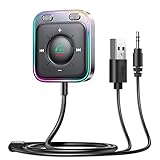
- HiFi Stereo Audio: JOYROOM Bluetooth 6.0 AUX car adapter with the stable Bluetooth technology, solving the transmission delay and connection issues of older versions. Enjoy faster, more stable audio with minimal sound loss, plus a working distance of up to 100FT—ideal as car accessories for daily use
- Clearer Calls: This AUX Bluetooth car adapter features dual microphones that work in tandem to capture your voice from 360° for smoother calls. The Bluetooth AUX receiver upgraded CVC8.0 technology and built-in filter IC effectively filters out more road noise, current sound, and other distractions, resulting in clearer hands-free calls on both ends of the line
- Plug and Play: Simply insert the bluetooth aux adapter into your car 3.5mm aux jack and power via USB. Start your car, and the Bluetooth car adapter will automatically pair your phone immediately. Supports two devices simultaneously, making it a versatile car essential for music and hands-free calls
- Multifunction Button & LED Light Design: The car AUX adapter has an independent buttonfor music, volume, and calls. This Bluetooth receiver supports one-key up and down song/volume up/down/answer/hang up/call back. Ease of use, no distractions, and safer driving. LED lights make it easier to find buttons when night falls
- Multi Safety Protection: Our AUX Bluetooth adapter meets rigorous quality standards and carries FCC, CE, RoHS, and BQB certifications. This reliable Bluetooth AUX for car also features built-in voltage, overcurrent, short-circuit, and overheating protection—ensuring safe, worry-free use. A durable car essential you can trust
The SYNC screen is frozen or behaves erratically
Try a system or module reset before a factory reset. Ford describes the system reset as a way to restore functionality without deleting stored information such as paired phones, radio presets, or navigation points. The button combination varies by vehicle and system.
For SYNC 3, Ford documents holding the Seek Up and audio-unit Power buttons simultaneously until the screen turns black, then pressing Power to restart. If that combination does not match your vehicle, use the owner’s manual or Ford’s current support instructions rather than guessing.
Pairing still fails after a system reset
A master or factory reset is a later step, not the first troubleshooting action. It erases stored data, which can include call history, text messages, previously paired phones, navigation favorites, and other personalized settings. Record anything you need before proceeding. A master reset does not downgrade the installed SYNC software.
Windows Errors? Fix Them Before They Spread
Repair common Windows errors and clear accumulated junk for a smoother, more stable PC - no reinstall needed.Free scan · no reinstallCrashes, No Sound, or Screen Glitches?
Random freezes, missing sound and display glitches usually trace back to one bad driver. Find and replace yours safely.Free scan · under a minuteCheck for a Ford SYNC software update
For most SYNC versions other than certain SYNC 4, SYNC 4A, and Ford Digital Experience configurations, Ford directs owners to its support site. Enter the VIN and choose Check for update. If the system is current, Ford displays a green checkmark and indicates that no update is available.
Best Value

- Add Bluetooth to Your Car: UGREEN Bluetooth receiver is designed to turn home or audio systems, or speakers into hands-free, Bluetooth-enabled devices. If you want to stream music or listen to phone conversations through car’s speakers, but your vehicle didn’t come with Bluetooth, UGREEN Bluetooth Car adapter is an effective solution.
- High-Fidelity Stereo: Equipped with the latest Bluetooth v6.0 chipset, the 3.5mm Bluetooth adapter offers a 10m stable connection without delay. This car Aux Bluetooth adapter supports SBC codec, delivering clear, functional, and enjoyable sound—both for listening and for speaking.
- Hands-Free Calling: Built-in with microphones, UGREEN Bluetooth car aux receiver allows you to enjoy phone calls with hands-free calling straight through the car's speakers. With the help of this compact Aux Bluetooth car kit, you don’t have to look down at the phone on the move. Have a safe journey!
- Plug and Play: UGREEN 3.5mm Bluetooth Car Adapter is quite easy to use. Just plug it into the 3.5mm aux jack and power it by the USB port, no need to continually charge the battery! The Aux to Bluetooth adapter will automatically connect with your phone when you turn on the car. This Bluetooth car Aux adapter also can remember up to five devices and allows users to pair and share two devices at the same time without any trouble.
- Durable and Portable: UGREEN Bluetooth Car Adapter is made of zinc alloy connectors, which enhanced the durability of Bluetooth 3.5mm adapter. With a 0.3M-1.5M premium TPE elastic cable, the car USB Bluetooth adapter will meet your needs on different occasions. The UGREEN Bluetooth kit will not take up extra space in your car as it's mini size.
Do not expect an update to add CarPlay to every Ford. Compatibility depends on the vehicle’s hardware and configuration. Ford’s support information notes that some 2016 vehicles with SYNC software version 2.0 or later need both software and hardware upgrades for Apple CarPlay. Verify the vehicle specifically before buying an adapter or scheduling an installation.
When Bluetooth is enough—and when CarPlay is worth setting up
- Choose Bluetooth if you mainly need hands-free calls or occasional wireless audio and do not need iPhone apps on the SYNC screen.
- Choose wired CarPlay if the vehicle supports it and you want the most straightforward supported connection, especially with SYNC 3.
- Choose wireless CarPlay only if your specific vehicle is equipped for it. SYNC 4 or 4A alone is not a guarantee.
- Contact Ford SYNC support or an authorized dealer when the vehicle’s hardware, software version, retrofit eligibility, or installation requirements are unclear.
The most common successful setup is simple: pair Bluetooth from the SYNC phone menu, or connect the iPhone to the correct USB port with a compatible data cable for wired CarPlay. If that fails, remove the old pairing, check Siri and the cable, verify the vehicle’s SYNC capability, and reserve a master reset for last.
Frequently Asked Questions
Does pairing my iPhone with Ford SYNC automatically enable Apple CarPlay?
No. Bluetooth pairing provides hands-free calling and, on compatible systems, Bluetooth audio. It does not necessarily display iPhone apps on the Ford screen. Apple CarPlay must be supported by the vehicle and set up separately.
Does every Ford SYNC 4 vehicle have wireless Apple CarPlay?
No. Ford documents wireless Apple CarPlay for supported SYNC 4 and SYNC 4A vehicles. SYNC 3 requires wired CarPlay through USB, and equipment, trim, market, and software still determine compatibility.
Why does my iPhone charge but CarPlay does not appear?
Check that Siri is enabled, use an Apple-approved cable that supports data, and connect it to the USB port closest to the SYNC screen. Unlock the iPhone, accept the prompts, select USB or CarPlay as the source, and try another approved cable if necessary.
Will resetting Ford SYNC delete my paired phones and settings?
Start with a SYNC system or module reset, following the button combination for your vehicle. A master or factory reset should come later because it deletes paired phones, call history, messages, navigation favorites, and other personalized settings.
The Bottom Line
Bottom line: Bluetooth pairing connects an iPhone for calls and possibly audio; Apple CarPlay is a separate feature. Identify the SYNC generation first, use the vehicle’s Add a Phone menu, and use a compatible data cable for wired CarPlay. Wireless CarPlay is limited to equipped vehicles, generally supported on SYNC 4 and SYNC 4A—not SYNC 3.
The Tool Desk
Outbyte Driver Updater FREEFix the driver behind crashes, sound loss and screen glitchesFind Drivers →Outbyte PC Repair FREERepair Windows errors before they cause bigger problemsFix Now →Quick Recap
Product prices and availability are accurate as of the date/time indicated and are subject to change. Any price and availability information displayed on Amazon at the time of purchase will apply.




