Do these 3 things before closing this tab:
1Fix the driver behind crashes, sound loss and screen glitches2Clear out junk files and repair common Windows errors3Scan for outdated or missing drivers - takes under a minuteMultiple car screens do not follow one universal architecture. A vehicle may use an instrument cluster for speed and warnings, a central display for navigation and communications, and a head-up display (HUD) that repeats selected information in the driver’s forward view. Whether that arrangement helps or distracts depends on the task: how many glances it requires, whether the driver must touch or type, how long the interaction lasts, where the information appears, and whether glare or reflections make it difficult to read.
Simply counting screens does not establish crash risk. The safety question is what the driver is being asked to see, understand and do while the vehicle is moving.
As an Amazon Associate I earn from qualifying purchases.
What “multiple screens” means in a car
“Multiple screens” can describe several separate display surfaces with different jobs rather than one synchronized system. The exact arrangement varies by vehicle, software version and equipment level. A driver should not assume that information shown on one display will automatically appear on another, or that every screen can be controlled from the same menu.
The Tool Desk
Outbyte PC Repair FREEClear out junk files and repair common Windows errorsFree Scan →Outbyte Driver Updater FREEFix the driver behind crashes, sound loss and screen glitchesFind Drivers →| Display surface | Common information role | Questions that affect safety |
|---|---|---|
| Instrument cluster | Speed, warning telltales and other primary driving information | How quickly can the driver locate and interpret the value? Are warnings clear under changing light? |
| Central infotainment display | Navigation, communications, media and vehicle settings | Does the task require touching, typing, repeated menu changes or watching for visual feedback? |
| Head-up display (HUD) | A projected view of selected information that supplements corresponding instrument-panel displays | Does it remain legible without obscuring the road scene, and does it reduce or merely duplicate glances? |
NHTSA’s 1988 interpretation of a proposed HUD documents one specific example of duplication: the HUD would supplement corresponding displays on the instrument panel. That example shows how two surfaces can present related information, but it does not establish a common interface for all modern vehicles.
#1 Best Overall

- Advanced GPS Heads Up Display for Cars: This Car HUD uses dual-mode GPS + BDS technology with a 10Hz high refresh rate, connecting to up to 32 satellites for fast, stable, and accurate real-time speed tracking
- Clear Speed Projection without Looking Down: designed as a true heads up display for cars windshield, it projects speed directly into your line of sight, helping you stay focused on the road and drive more safely
- Auto Brightness for Any Lighting Condition: Built-in intelligent light sensor automatically adjusts screen brightness for clear daytime visibility and comfortable night driving without glare
- Plug & Play USB Power (5V) — Wide Vehicle Compatibility: This head up display for car is USB-powered, no OBD port required. Compatible with most cars, trucks, and motorcycles equipped with a USB port
- Large, Easy-to-Read Display: Displays speed in MPH by default (up to 115 MPH) with a large font and anti-reflective metal shading, making it easy to read even for older drivers or while wearing sunglasses
How the screens can work together
Duplicating critical information
A HUD can place selected speed, navigation or warning information near the driver’s normal forward view while the instrument cluster remains available as the conventional reference. Duplication can reduce the distance of a glance for a particular value, but it also means the driver may see the same information in two places with different layouts, brightness or update timing. The owner’s manual should be treated as the authority for what a specific HUD displays and which settings control it.
Dividing information by role
Many vehicles place primary driving information in the cluster and secondary functions in the center display. Navigation guidance may be available in both locations, while communications, entertainment and vehicle configuration remain on the central screen. That division is a design choice, not a guarantee. Some vehicles allow extensive customization; others restrict which items appear in each location.
Separate systems are not necessarily synchronized
The available evidence does not establish that all vehicle screens share a common data model, refresh at the same rate or coordinate their content automatically. A route may be selected on the infotainment system and represented graphically in the cluster or HUD, but the details depend on the vehicle. Before relying on a particular handoff, check the manufacturer’s documentation for that model and software version.
Primary driving information versus secondary tasks
NHTSA’s visual-manual guidance distinguishes conventional controls and displays—such as instrument gauges and telltales—from secondary, non-driving tasks. Its purpose is to limit potential distraction from visual-manual activities involving information, navigation, communications and entertainment on integrated electronic devices. This is a scope distinction in the guidance, not a declaration that every glance at an instrument cluster is harmless. A driver can still be overloaded by a confusing warning, an unreadable display or an interaction that takes attention away from traffic.
Can multiple car screens distract the driver?
Yes. Distraction depends on the demands of the activity and the driver’s exposure to it, not on screen count alone. NHTSA describes three overlapping forms:
Rank #2

- SAFE IS THE FIRST----Just focus on your driving, could read speed at a glance with the digital numbers but without having to look down; This unit simply displays directly to you at whatever angle you set it up, no need to make effort to have a look, which may lead to make distractions or even cause accident.
- NEW DRIVING EXPERIENCE----10 kinds interface, free switch, LCD meter, clear fault code, read data stream; 2 install way with adjustable bracket, put on dashboard or stick to windshield, easy operation, non-destructive installation.
- A MUST HAVE----If you don't want your driving record to have points on it or pat hundreds of dollars in speeding tickets; If on a major highway, you really want to know how fast you are going; If your wife get worried and want to see you're not driving so fast as she feels; Or if you would like to solve your problem of never knowing how fast you are going, this speedometer perfectly matches your need.
- DRIVING MORE COMFORTABLE----When driving normally, the ambient light is blue color(automatically adjusts the brightness according to the environment ); when driving abnormally, such as speeding, the ambient light will be changed to Red color for alarming.
- MORE SMOOTH & STABLE----Common meter only has OBD mode, but ours is dual mode: OBD+GPS 2-in-1, the default display OBD+GPS function at the same time, and data display is more abundant. OBD system, can read more than 100 kinds of data in the car. If the vehicle doesn't have OBD2 protocol, only displays GPS function.
- Visual distraction: the driver’s eyes leave the forward road scene.
- Manual distraction: a hand leaves the wheel to touch, type or manipulate a control.
- Cognitive distraction: mental attention is diverted from observing and responding to traffic.
One operation can involve all three. Entering a destination requires looking at a display, moving a hand and thinking through a sequence of menus. Even a visually simple operation can become a concern when it is repeated frequently or maintained for a long period.
Task demand and exposure are different
An easy task is not automatically safe if it is performed over and over while driving. Conversely, a brief glance to confirm a simple driving-related value is a different activity from reading a long message or entering text. Evaluate both the difficulty of understanding the information and the number, length and timing of the driver’s interactions.
Free tools Windows power users keep installed
One-click scans. No signup required.
Why a convenient screen can still create work
A display placed close to the line of sight may shorten a glance, but it does not remove the need to understand the information. A large central screen can make maps easier to see while also inviting additional controls, notifications and menu choices. A HUD can keep selected data in front of the driver but may duplicate information or become hard to read when the windshield is bright, dirty or reflective.
What the Euro NCAP distraction measure actually says
Euro NCAP’s Safe Driving Driver Engagement Protocol v1.0, published in March 2025, defines a “short distraction” (visual attention time sharing) event as repeated glances away from the forward road view totaling 10 seconds within a 30-second period. Its assessment includes gaze locations such as the in-vehicle infotainment system and the instrument cluster.
That definition is an assessment criterion, not a legal limit and not permission to look away for 10 seconds. It does not show that every glance, screen position or vehicle layout has equal risk. It provides a way for an assessment protocol to describe a pattern of visual attention; real-world safety still depends on traffic, speed, road geometry, weather and the task being performed.
Rank #3
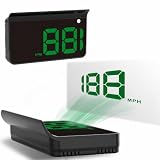
- Strong Signal Reception: Our car hud uses dual-mode chip technology—GPS+BDS signals—with a high refresh rate of 10 Hz for rapid, accurate reception. It can pick up to 32 satellite signals, it maintains a stable connection for precise speed data, whether you're driving in urban or rural areas
Design factors that determine whether screens are manageable
Position relative to the normal line of sight
The European Commission recommendation on driver information says visually displayed information should be assimilated with a few brief glances and recommends placing displays close to the driver’s normal line of sight where practicable. A display farther away can require longer or more frequent glances and may make information harder to obtain. Placement must also avoid obstructing the driver’s view of the road.
Legibility, glare and reflections
Brightness, contrast, font size and viewing angle affect how quickly information can be extracted. The European Commission material specifically identifies glare and reflections as factors that can make displays harder to read and divert attention. A screen that is clear in a showroom may be difficult to interpret with a low sun, wet windshield, sunglasses or a bright instrument-panel reflection.
Interaction depth
Count the actions needed to complete a common task. A single confirmation is a lighter interaction than opening a menu, selecting a sub-menu, scrolling through a list and confirming a choice. Typing addresses or messages is especially demanding because it combines visual search, manual input and language processing.
Feedback and consistency
Drivers need to know whether a command worked. Delayed or ambiguous feedback can prompt repeated taps and longer glances. Inconsistent labels between the cluster, HUD and center display can also increase cognitive demand because the driver must interpret different symbols for related functions.
Comparing common display arrangements
No arrangement is a universal winner. Use the following axes to assess the vehicle in front of you.
Windows Errors? Fix Them Before They Spread
Repair common Windows errors and clear accumulated junk for a smoother, more stable PC - no reinstall needed.Free scan · no reinstallCrashes, No Sound, or Screen Glitches?
Random freezes, missing sound and display glitches usually trace back to one bad driver. Find and replace yours safely.Free scan · under a minuteRank #4

- Multifunction Display: Car headup display, real-time display of time, temperature, altitude, speed, solar charging, etc., to keep abreast of vehicle status.
- GPS Positioning: Support GPS positioning system, can locate time and set vehicle speed compensation to make the displayed data more accurate.
- Dual Power: Built-in large-capacity battery, support solar power and USB power supply, integrated large-area solar panel, quick charging, long endurance.
- High Clear Display: With LCD digital display, large font display, easy to see. Solar panel can intelligently identify the brightness, and it is clear whether it is day or night.
- Alarm Function: Support overspeed alarm and fatigue driving reminder, the speed and time can be set by yourself to add safety to your driving.
| Arrangement | Potential advantage | Potential distraction source | What to verify |
|---|---|---|---|
| Instrument cluster only for driving data | Primary values are grouped in a familiar location. | Small text, dense warning layouts or poor contrast can slow interpretation. | Can speed and warnings be read with a brief glance in bright and dark conditions? |
| Central infotainment display for navigation and other secondary tasks | A larger surface can present maps and menus clearly. | Lower or offset placement may require longer glances, touching and menu navigation. | Can routine actions be prepared before moving, and are voice or steering-wheel controls available? |
| HUD supplementing the cluster | Selected information appears nearer the forward view. | Duplicate or cluttered information, glare, reflections or poor projection alignment can add work. | Which data is projected, how is brightness adjusted and what happens if the HUD is disabled? |
| Cluster, center display and HUD used together | Different surfaces can specialize in primary information, navigation and selected prompts. | The driver may need to search multiple locations or reconcile different presentations. | Does the owner’s manual explain the handoff, priority of warnings and customization options? |
How to use a multi-screen car with less distraction
Before moving
- Set the route and destinations while parked. Enter addresses, choose map preferences and pair devices before joining traffic.
- Configure the displays. Select a readable theme, adjust brightness and position the steering wheel and seat so the cluster and any HUD are visible without blocking the road.
- Learn the control path. Practice the steering-wheel buttons, voice controls and physical controls you intend to use. Do not experiment with unfamiliar menus in motion.
- Reduce nonessential alerts. Disable or silence notifications that do not support the immediate driving task, where the vehicle permits this.
- Check the windshield and screen surfaces. Clean glare-producing areas and confirm that reflections do not hide warnings or navigation prompts.
While driving
- Use the shortest available interaction. Prefer a single preset, steering-wheel command or voice action over multi-step touch navigation when it is reliable and legal where you drive.
- Keep glances brief and purposeful. Look only long enough to obtain the needed information, then return attention to the road.
- Stop for complex tasks. Pull over safely before typing, reading extended messages, changing several settings or troubleshooting a device.
- Do not chase a failed command. If a tap, voice instruction or route change does not work promptly, wait until stopped rather than repeating the sequence in traffic.
- Use the manual for model-specific behavior. Confirm which warnings appear in each display and whether the HUD mirrors, summarizes or omits cluster information.
What the official guidance does—and does not—say
NHTSA’s visual-manual guidelines are voluntary and nonbinding. The notice recommends limiting or restricting certain inherently distracting secondary tasks while driving and describes evaluation of other visual-manual tasks using eye-glance criteria. NHTSA’s guidance index lists Version 1.01 of the visual-manual guidelines as September 2014 and the related test-procedure documentation as August 2019.
These documents do not create a universal screen layout, certify a particular vehicle interface or establish that adding a display independently causes crashes. They address classes of tasks and methods for evaluating visual-manual demand. Local laws may impose separate restrictions on phone use, messaging or other activities, so check the rules where you drive before making a legal assumption.
How to evaluate your own vehicle
Ask five practical questions
- Can I find the required value or warning with one short glance?
- Does the task require touching, typing or repeated menu changes?
- Is the display close enough to the normal line of sight without blocking the road?
- Can I read it in direct sun, at night and with common reflections?
- How often will I need to repeat the interaction during an ordinary trip?
Warning signs that the interface is demanding too much
- You lose track of traffic while searching for a familiar control.
- You need several attempts to confirm whether a command registered.
- You lean or turn your head to overcome glare or an awkward viewing angle.
- You regularly postpone lane changes, braking or other driving decisions while reading the display.
- You feel pressure to keep watching the screen because information disappears quickly.
Those signs indicate that the task or presentation needs to change: prepare it while parked, simplify the display, use a different control method or stop the vehicle. They do not prove that the number of screens itself is unsafe.
Common misconceptions
“A HUD makes the car distraction-free.”
A HUD can reduce the distance to selected information, but it still requires visual and cognitive processing. It may also introduce glare, reflections or duplicate content. Its benefit depends on what it shows and how the driver uses it.
Recommended Free Tools
“The instrument cluster is never a distraction.”
Instrument gauges and telltales are treated as part of the primary driving task in NHTSA’s scope distinction, but a confusing, overloaded or unreadable cluster can still demand attention. A glance at a cluster is not automatically equivalent to a glance at every other screen, nor is it automatically risk-free.
“More screens always mean more crashes.”
The reviewed guidance does not isolate screen count as a causal factor, and it provides no statistic comparing multi-screen and single-screen vehicles. The defensible conclusion is narrower: poorly designed or demanding interactions can increase visual, manual and cognitive distraction, regardless of how many physical displays the vehicle has.
Bottom line for drivers
Multiple screens work together by dividing or duplicating information according to a vehicle-specific design. A HUD may supplement the instrument cluster; a central display commonly handles navigation and other secondary functions; and the interfaces may or may not be synchronized. The safety outcome turns on glance duration and frequency, interaction steps, cognitive workload, placement, visibility and exposure—not the raw number of screens. Set up complex functions before driving, keep in-motion interactions brief, and stop safely for anything that requires sustained reading or typing.
Quick Recap
Product prices and availability are accurate as of the date/time indicated and are subject to change. Any price and availability information displayed on Amazon at the time of purchase will apply.
What’s actually slowing this PC down?
Pick the symptom - the matching free tool is one click away.




