The best aftermarket CarPlay solution for a Tesla depends on where you want CarPlay to appear. A wireless USB adapter is the quickest, reversible option; a Tesla-specific decoder module can integrate with the factory display; and a separate add-on screen provides its own interface when factory-screen integration is unavailable. For newer cars, the TAPTES T13 is explicitly listed for the 2024–2026 Model 3 Highland and 2025–2026 Model Y Juniper. SpaceBox advertises a plug-in adapter for a broader range of Tesla models, while AutoMMI and Custom Tesla sell vehicle-specific hardware that requires closer fitment checks.
There is no independent, controlled comparison covering latency, brightness, audio quality or long-term reliability across these products. Treat installation times, review scores and “no modification” statements as vendor claims. Use the architecture and compatibility guidance below to choose a system that fits your Tesla’s exact model year, screen hardware and audio path.
As an Amazon Associate I earn from qualifying purchases.
Quick picks by Tesla owner and use case
| Solution | Best fit | Published fitment or features | Installation profile | Important qualification |
|---|---|---|---|---|
| SpaceBox wireless USB adapter | Owners who want a reversible, low-effort setup | Vendor lists Model 3, Model Y, Model S, Model X, Cybertruck and Juniper; wireless CarPlay and Android Auto | USB connection; vendor claims about five-minute installation and no vehicle modification | Compatibility, audio behavior and the vendor-reported 4.88/5 rating from 232+ verified reviews have not been independently tested |
| AutoMMI decoder module | Owners prioritizing factory-screen integration | Vehicle-specific modules for selected Model 3/Y, Model S/X and 2025 Model 3/Y applications | Hard-installed module with model-specific wiring; installer availability varies | AutoMMI says these are Tesla-specific decoder modules and requires confirmation of model year and original screen system |
| Custom Tesla TMA S11 | Owners willing to add a second display with broader interface features | Model 3 and Model Y year variants; Apple CarPlay, Android Auto, OTA updates, multilingual interface, vehicle-audio output and optional front camera | Add-on display; mobile installation is offered | Exact year fitment, camera placement and audio connection must be confirmed for your car |
| Custom Tesla T6 | Owners who prefer a smaller secondary screen | 6.86-inch display with Apple CarPlay and Android Auto; optional-camera positioning is listed | Add-on hardware; installation method depends on the vehicle and kit | Check viewing angle, vent clearance and the listed audio path before ordering |
| TAPTES T13 | Owners of the latest listed Model 3 and Model Y refreshes | 8.8-inch display; wireless CarPlay and Android Auto; OTA updates; listed for 2024–2026 Model 3 Highland and 2025–2026 Model Y Juniper | Separate display hardware | Marketplace listing, seller, price and exact fitment should be verified at purchase |
First decide whether you need the Tesla factory screen
Apple does not provide a native CarPlay mode on Tesla’s factory infotainment system. Aftermarket products therefore take one of three architectural approaches:
- Wireless adapter: a small device connects through USB and presents CarPlay through its own interface. Depending on the product, the Tesla may show that interface through a browser-like method or another workaround rather than a native Tesla menu.
- Decoder module: a Tesla-specific module is installed in the vehicle and is designed to work with a particular original screen and wiring layout.
- Separate display: a second screen is mounted in the cabin and runs CarPlay independently of the Tesla display.
This choice affects more than appearance. It determines installation time, reversibility, camera support, steering-wheel sightlines, audio routing and whether you will operate two screens that duplicate information already available in the Tesla.
#1 Best Overall

- 【OEM Fit & Plug-and-Play for Tesla Model Y (2020-2024) and Model 3 (2016-2023)】 Specifically designed for Tesla Model Y and Model 3, this HotSunTesTec CarPlay HUD installs quickly in just 50 minutes without modifying your car. The 9.6-inch HD 2.5D screen with a 1920x480 resolution features an ultra-thin bezel for a sleek look and superior visibility, perfectly blending with your Tesla’s interior.
- 【Seamless 60 FPS Wireless CarPlay and Android Auto】 Enjoy smoother, faster CarPlay and Android Auto integration with 60 FPS performance. Use your favorite navigation, music, and apps on split or full screen. Supports Siri and Google Assistant for voice commands, enabling hands-free convenience.
- 【Automotive-Grade Linux System with High-Performance CPU】 Powered by a Linux system and vehicle-grade CPU, this HUD offers 4x faster performance than the previous model with ultra-low power usage, ensuring a stable, long-lasting experience in all driving conditions.
- 【No AC Vent Obstruction and Customizable Interface】 Unlike other models, this HUD is uniquely optimized for the Tesla Model Y and Model 3 to avoid blocking air conditioning vents. Choose from five unique, high-quality UI designs to personalize your HUD interface for a fun and functional driving experience.
- 【Immersive Driving Features & Real-Time Sync】Available in five colors (white, red, black, blue, grey) to match your Tesla’s exterior, this HUD supports steering wheel control, day/night modes, and OTA updates for easy, worry-free software upgrades. Displays real-time vehicle info like turn signals, brake status, speed, and temperature. Additional safety features include Auto-Pilot alerts, Blind Spot Monitoring, Front Collision Warning, Battery Warming, Passenger Seat Adjustment
Wireless USB adapters: the simplest starting point
What the adapter approach does well
A USB adapter is attractive when you want to avoid trim removal or permanent wiring. SpaceBox claims that its adapter uses a USB connection, supports wireless CarPlay and Android Auto, and works with Model Y, Model 3, Model S, Model X, Cybertruck and Juniper. The same vendor advertises a five-minute installation and no vehicle modification.
Those claims describe a convenient installation path, not a guarantee for every Tesla configuration. A USB port, phone pairing and audio output still have to cooperate in your specific car. An adapter that appears on a screen but cannot send audio to the cabin speakers is not a complete solution.
What to verify before ordering
- Which Tesla screen and software combination the adapter supports, not just the vehicle name.
- Whether the adapter uses Bluetooth, Wi-Fi, USB audio, an AUX connection or an OEM integration path for sound.
- How the interface opens on the Tesla display and whether it requires a browser-like workaround.
- Whether two phones can be paired and how the system chooses the active phone.
- Return and warranty terms if wireless startup or audio routing does not work in your car.
Installation and first connection
- Park the Tesla and identify the USB port specified by the adapter’s instructions. Do not assume every port supplies the same data function.
- Connect the adapter and wait for its setup screen or connection prompt.
- On the iPhone, follow the adapter’s Bluetooth and Wi-Fi pairing instructions. The exact network name and menu labels vary by product.
- Approve CarPlay permissions on the phone when prompted, then test a navigation instruction, a phone call and music playback.
- Confirm that sound comes through the intended Tesla speakers and that the Tesla’s normal controls remain available when you exit the adapter interface.
If the vendor’s five-minute claim is accurate for your configuration, the adapter can be removed just as easily. That reversibility is its strongest advantage over a hard-installed module.
The Tool Desk
Outbyte Driver Updater FREEFix the driver behind crashes, sound loss and screen glitchesFind Drivers →Outbyte PC Repair FREERepair Windows errors before they cause bigger problemsFix Now →How much weight to give the review score
SpaceBox/TeslaHubs reports “4.88/5 from 232+ verified reviews” in 2026. This is a vendor-reported rating, not an independent test. It can indicate customer sentiment on that seller’s platform, but it does not establish a controlled result for startup time, latency, brightness, audio quality or long-term reliability.
Factory-screen decoder modules: the integration-first option
Why fitment is unusually important
AutoMMI describes its products as Tesla-specific decoder modules rather than universal USB adapters. Its category guidance says: “These are Tesla-specific decoder modules. Please confirm model year and screen system before ordering.” The company lists modules for selected Model 3 and Model Y vehicles, selected Model S and Model X applications, and 2025 Model 3/Y applications.
Rank #2
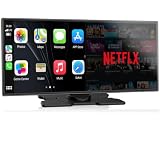
- Upgrade Your Drive with CarPlay Screen: Transform your car into a smart entertainment hub with wireless CarPlay and Android Auto. Dual Bluetooth technology enables simultaneous connection to your phone and original car system—calls and music play through your car's speakers while the 11" screen handles touch control and display. Stream Netflix, YouTube, and TikTok via phone hotspot. Voice-controlled navigation and hands-free calls keep you focused on driving. (tips: This screen does NOT have built-in CarPlay or Android Auto software.)
- Built-in Net-flix and YouTube: Stuck in traffic? Waiting for someone? Long trip? Not a problem anymore! Just connect to a hotspot and stream movies, binge-watch shows, and even catch live games right from your Net-flix CarPlay screen. Your car is no longer just a vehicle it’s your entertainment hub. Every seat feels like a VIP experience.
- Dual WiFi and Dual Bluetooth Stability: Dual-band WiFi (2.4G + 5G) ensures smooth CarPlay navigation while passengers stream HD video without buffering. Dual Bluetooth separates audio and control functions—carplay screen connects to car's original audio system for calls and media, and it can manages touch commands and display. Result: clearer sound, stronger signal, zero audio lag. Split-Screen mode lets driver view GPS while passenger watches content.
- In-Cell Display and Instant Wake: Fall in love with the ultra-responsive In-Cell touchscreen , crystal clear and super slim. And thanks to Instant-Wake technology, your car play screen turns on the moment you start your car. Your music and maps resume right where you left off. No waiting, no fuss just pure convenience.
- 11″ HD Screen and Custom UI: Experience stunning visuals on a bright, expansive 11-inch display. Make it truly yours - upload your favorite boot logos and wallpapers via SD card. Every time you start your car, this Apple car play screen greets you with personality and style.
A Tesla’s model name is not enough to establish compatibility. Production year, refresh name and the original screen system can change the connector layout or the display hardware. A module intended for one Model 3 generation may not work in another even when the cabin looks similar.
Advantages over a second screen
- CarPlay can be presented through the vehicle’s existing display instead of adding another panel to the dashboard.
- The installation can preserve more of the OEM visual layout and controls when the module is designed for that screen generation.
- Some modules offer provisions for camera inputs or other integrations that a generic adapter does not.
Trade-offs and installation planning
A decoder is a hard-installed component. Expect model-specific wiring and some level of trim access rather than a simple USB plug-in. Before booking an installer, ask whether the kit requires camera wiring, which factory controls remain available, and whether firmware updates are supplied for your exact module.
Professional installation is particularly sensible when the product listing does not show a clear connector map or when your Tesla has an uncommon screen revision. A return can be difficult after trim has been removed or wiring has been routed through the dashboard, so verify fitment first.
Separate add-on displays: the flexible but visible solution
Custom Tesla TMA S11
The TMA S11 is listed for Model 3 and Model Y year variants and includes Apple CarPlay, Android Auto, OTA updates, a multilingual interface and vehicle-audio output. An optional front camera is offered, and mobile installation is available. These features make it a self-contained cockpit display rather than a small adapter hidden in a USB port.
Because the display is separate, check the physical installation before focusing on software features. The mount should not block a vent, cover a steering-wheel sightline or interfere with access to the Tesla’s original screen. Confirm how the kit sends sound to the vehicle: “vehicle-audio output” does not by itself identify whether the connection is Bluetooth, AUX, USB or another path.
Rank #3

- Krunia Anniversary Celebration Offer: Join our celebration! Purchase any Krunia product and email us at [email protected] to know the details on how to get one of these exciting gifts: a 256GB Memory Card or another CarPlay screen
- Wireless Apple CarPlay & Android Auto Screen: Enjoy seamless wireless carplay and android auto connectivity for hands-free calls, music, and messaging. Access real-time navigation via Apple Maps, Google Maps, or Waze with live traffic updates. This portable CarPlay screen for car ensures smooth voice control and effortless integration, making it a versatile car tablet for daily commutes
- Ultra-Fast Responsiveness: Powered by 5G Wi-Fi and bluetooth 5.0, this car play screen delivers 1.35x smoother performance and 25% faster touch response than competitors. Ideal for wireless carplay and android auto, it provides a lag-free experience, whether you're using GPS navigation or streaming audio through your car’s sound system
- Vivid IPS Touchscreen: Featuring 550 cd/m² brightness, 1000:1 contrast ratio, and 16.7 million colors, this car tablet reduces glare and offers 18% brighter visuals. Its vibrant, tablet-like display stands out from standard car screens, enhancing visibility for navigation and multimedia
- Crystal-Clear Resolution: With a 1600x600 resolution—one of the highest in carplay/android auto screens—this display provides up to 1.5x sharper clarity than rivals. Perfect for GPS navigation and backup camera views, it ensures every detail is crisp and easy to read
Custom Tesla T6
The T6 listing describes a 6.86-inch version with CarPlay and Android Auto and an optional-camera position. Its smaller footprint may suit a driver who wants navigation and calls visible without installing a large panel. Measure the proposed mounting area and compare the screen angle with your normal seating position before choosing it.
Free tools Windows power users keep installed
One-click scans. No signup required.
TAPTES T13
TAPTES lists the T13 as an 8.8-inch display with wireless CarPlay, wireless Android Auto and OTA updates. The published fitment is specific: 2024–2026 Model 3 Highland and 2025–2026 Model Y Juniper. This is the clearest model-year-specific listing in the available product information.
Use the fitment wording exactly as a starting point, then verify your car’s refresh name and production details with the seller. Marketplace availability, seller identity and price can change, and the listing should not be treated as proof that every vehicle built in those years has identical hardware.
Tesla model-year and screen compatibility
| Tesla application | What is explicitly listed | What you still need to confirm |
|---|---|---|
| Model 3 Highland | TAPTES T13: 2024–2026 | That the car is the Highland refresh and has the screen hardware covered by the current listing |
| Model Y Juniper | TAPTES T13: 2025–2026; SpaceBox also claims Juniper compatibility | Exact production configuration, screen revision and the seller’s current fitment confirmation |
| Earlier Model 3 or Model Y | SpaceBox claims support; AutoMMI lists selected vehicle-specific applications | Model year, original screen system, connectors and whether the application is factory-screen or add-on hardware |
| Model S or Model X | SpaceBox claims support; AutoMMI lists selected applications | Exact year and screen generation; do not infer compatibility from the badge alone |
| Cybertruck | SpaceBox claims compatibility | Current firmware, audio path and physical installation details for your truck |
When contacting a seller, send the VIN or build information only through the seller’s approved support channel and ask for written confirmation of the exact screen system. “Model 3 compatible” is not precise enough for a decoder module.
Independent reader supportYour contribution helps us test, update, and keep practical guides available for everyone.Audio routing is as important as the screen
CarPlay graphics can work while audio fails. Before purchase, identify the route the product expects:
Rank #4

- [Perfect Tesla Integration] – Exclusively designed for Model 3 Highland 2024 2025. Flawlessly merges with dashboard (no air vent blockage!) and supports AMD/Intel Ryzen CPUs + Tesla V12+ software.
- [Real-Time Safety & Data HUD] – Projects blind spot warnings, rainbow road navigation, speed, gear, battery status, tire pressure alerts and critical vehicle data. Keep eyes forward, drive safer.
- [30-Min Plug & Play Setup] – No cutting wires! Disconnect OEM harness, connect cables, attach power – ready in 30 minutes. Free OTA updates via Wi-Fi for future features.
- [12 Shortcuts + Wireless Smartphone] – One-tap control for doors, seats, trunk, Android Auto/CarPlay. Stream, navigate, and split-screen wirelessly.
- [Anti-Glare Screen + Zero Risk] – Vibrant 9.66” HD display (1920x480P) readable in sunlight. Backed by 60-day trial + lifetime warranty & 24/7 support.
- Bluetooth: usually easy to reverse, but the Tesla may switch between the phone, the CarPlay device and another paired source.
- AUX: can provide a direct analog path where the vehicle has the appropriate input, but the cable route and adapter requirements matter.
- USB: may carry data, power or audio depending on the port and product. Do not assume that a USB connection provides all three.
- OEM integration: a decoder may use the vehicle’s existing audio and controls, but only when the module is designed for that screen and wiring configuration.
Test navigation prompts, calls and music separately. A product that plays music but leaves turn-by-turn directions silent has an audio-selection problem, not necessarily a screen problem.
Installation checklist
For a wireless adapter
- Confirm the Tesla model, year and screen arrangement against the seller’s current compatibility list.
- Check which USB port is required and whether the adapter needs a separate power lead.
- Pair one iPhone first; add other phones only after the first connection is stable.
- Test audio, calls and navigation while the Tesla is stationary.
- Save the return deadline and restore the original Bluetooth and audio settings before deciding the adapter works reliably.
For a decoder module
- Obtain written confirmation of the model year and original screen system.
- Ask whether the kit requires trim removal, camera wiring or a professional installer.
- Confirm what happens to the original Tesla interface and controls when CarPlay is active.
- Record the module’s firmware version and update method at installation.
- Test every retained function before reinstalling all trim panels.
For an add-on display
- Measure the proposed mounting area and check the driver’s sightline, vents and access to the factory screen.
- Decide where an optional front camera would sit and how its cable would be routed.
- Confirm the audio connection and whether the display can switch back to Tesla audio without re-pairing.
- Check that OTA updates are supported for the exact display version.
- Use the offered mobile installation service when you do not want to route wiring through the dashboard yourself.
What has not been independently established
No independent published test in the available product information compares these systems under the same conditions. There are no controlled figures for CarPlay latency, screen brightness, audio fidelity, boot time, connection-drop frequency or long-term reliability. Do not present any of those characteristics as tested facts.
You can still evaluate a product methodically after installation. Time how long it takes to become usable after the Tesla starts, try the connection in an area with heavy wireless traffic, make a call, follow a route and switch between the Tesla interface and CarPlay repeatedly. Keep those observations tied to your own vehicle and phone; they are not universal laboratory results.
Troubleshooting common failures
CarPlay does not appear
- Confirm the adapter or display has power and that the phone has Bluetooth and Wi-Fi enabled as required by the product.
- Forget the accessory on the iPhone and Tesla, restart both, then pair again from the product’s setup prompt.
- For a decoder, recheck the exact screen-generation fitment rather than repeatedly pairing the phone.
CarPlay appears but there is no sound
- Select the intended Tesla audio source and verify that the phone is not sending sound to another Bluetooth device.
- Check whether the product requires AUX, a particular USB port or an OEM integration setting.
- Test a phone call and a navigation prompt separately from music.
The connection drops or starts slowly
- Remove duplicate pairings and leave only the phone you are testing connected.
- Install the product’s available firmware update, then repeat the test after the Tesla has been power-cycled.
- If the issue continues, document the vehicle year, screen system, phone model and software versions for the seller or installer.
The second screen is distracting or obstructive
- Move the mount so it does not block the steering-wheel view, vents or access to the factory display.
- Reduce brightness at night and verify that the viewing angle remains usable in daylight.
- If the duplicate information is not useful, a factory-screen decoder or reversible adapter may be a better architecture.
How to choose in five decisions
- Need a removable solution? Start with a wireless USB adapter.
- Must CarPlay use the original Tesla display? Investigate a decoder module and verify the screen generation in writing.
- Own a 2024–2026 Model 3 Highland or 2025–2026 Model Y Juniper? Put the TAPTES T13 on the shortlist because those applications are explicitly listed.
- Want a larger interface, camera option or independent display? Compare the TMA S11, T6 and T13 by physical placement and audio routing, not just screen size.
- Unwilling to troubleshoot wiring? Favor a reversible adapter or use an installation service for an add-on display; a decoder is the least forgiving of an incorrect fitment.
The right purchase is the one whose architecture matches your Tesla’s hardware and your tolerance for installation. Confirm model year, refresh name, original screen, audio path, update policy, warranty and return window before paying. That process is more reliable than choosing solely from a star rating or a promise of universal compatibility.
What’s actually slowing this PC down?
Pick the symptom - the matching free tool is one click away.
Quick Recap
Product prices and availability are accurate as of the date/time indicated and are subject to change. Any price and availability information displayed on Amazon at the time of purchase will apply.




