Do these 3 things before closing this tab:
1Clear out junk files and repair common Windows errors2Scan for outdated or missing drivers - takes under a minute3Repair Windows errors before they cause bigger problemsIf Apple Maps shows your route in CarPlay but does not speak turn-by-turn directions, first start an active route, set guidance to All Guidance, and raise the car’s volume while a prompt is playing. Then check Siri, the CarPlay audio source, and the phone-to-car connection.
Some drivers reported this problem after iOS 15 updates in 2021, but Apple has not established one universal iOS 15 bug behind every case. The fault may be Maps, Siri, CarPlay audio routing, the vehicle’s infotainment system, or a particular wired or wireless connection.
As an Amazon Associate I earn from qualifying purchases.
Quick fixes to try while parked
- Open Maps in CarPlay, select a destination, choose a route, and tap Go. A route preview may not provide spoken directions if the starting point is not your current location. Apple explains the difference in its Maps guide.
- During navigation, tap the speaker or volume control and choose All Guidance, not Alerts Only or Mute.
- Wait for Maps to speak, then turn up the vehicle’s volume while the prompt is playing.
- Try enabling Directions on Radio if your car supports it.
- Test Siri using the steering-wheel voice button.
- Pause music or podcasts, restart the iPhone and infotainment system, and reconnect CarPlay.
1. Make sure Maps is actively navigating
Seeing a route on the screen does not necessarily mean turn-by-turn navigation has started. Enter the destination, select a route, tap Go, and confirm that Maps is tracking your current position. If the screen offers Steps rather than Go, you may still be previewing the route.
Spoken directions also require Location Services, precise location where supported, and an internet connection. Apple notes that turn-by-turn spoken directions are not available in every country or region. See Apple’s spoken-directions requirements.
#1 Best Overall

- 【Immersive 10.1-Inch IPS Touchscreen】: Compatible with most single/double din dash openings. Enhance your driving with a vivid HD display. Multi-angle adjustment ensures comfortable viewing. Wired MirrorLink connects iOS/Android devices, turning your car into an entertainment hub.
- [Wired and Wireless CarPlay and Android Auto with Voice Control]: Car stereo system allow to choose between wired or wireless Car Play and Android Auto, and enjoy voice control through Apple Siri or Google Assistant for calls, in-dash navigation, and music. This safer, smarter way to navigate(From connected phones) enhances daily drive with convenience.
- [Audiophile Sound Quality with Built-in DSP]: Immerse in audiophile-grade sound with a built-in DSP system, precisely tuned for perfection. The 10-band EQ lets sculpt the sound to preferences, 4.2 Channel pre amplifier output with peak power 60W*4(240W), 2 subwoofers deliver deep bass output for a resonating multimedia player experience.
- [Independent Bluetooth 5.3 Module with Extra Antenna]: Ensure a robust and uninterrupted connection with the independent Bluetooth 5.3 module and an extra Antenna. Minimize interference, reduce electronic noise, and enjoy a stable connection for hands-free calling and wireless music streaming, even in challenging environments.
- [Safety Driving and SWC Features]: Live Navigation from Carplay or Android Auto, leading directions. Steering wheel control support lets manage essential functions without taking hands off the wheel, creating a comprehensive safety and convenience package for a safer and more enjoyable driving experience.
2. Change Maps from Mute or Alerts Only
CarPlay Maps normally provides three guidance states:
- All Guidance: full turn-by-turn instructions.
- Alerts Only: traffic, hazard, or incident alerts without every turn.
- Mute: no spoken prompts.
With an active route running, tap the speaker or volume icon on the navigation screen and select All Guidance. Alerts Only can look like a software failure because the map continues updating while ordinary turns disappear. Some iOS 15 users reported difficulty finding or changing this control; the setting was also discussed in the Apple Community.
3. Raise the navigation volume at the right moment
Car stereos may treat spoken navigation as a separate audio stream from music, radio, or podcasts. Start a route, wait for Maps to speak, and raise the volume during the spoken instruction. Changing volume between prompts may adjust music instead.
If your head unit has separate navigation, guidance, phone, or prompt-volume controls, raise the relevant channel. Temporarily pause music to determine whether the prompt is being ducked or routed incorrectly. Do not assume the iPhone’s regular volume buttons control the navigation level once CarPlay is connected.
Rank #2

- Wired and Wireless CarPlay & Android Auto with Voice Control: The double din car stereo supports wireless apple car play and android auto. Connecting Phone wireless automaticly, as soon as you start the car. You can get directions from GPS navigation apps from phone link like Google Maps and Waze, planing the route for you, put on your personal playlist on Spotify (from phones), have Siri / Google Assistant (from phones) call a friend, etc. Let AI deal with the stress and focus on the wheel!
- High Fidelity Sound Quality with Built-in DSP: Built in DPS with 4.2 channels Pre Amplifier with max 240W output, FR, FL, RR, RL, adjusting music effect wherever position. 2 Subwoofer speakers outputs that delivers outstanding sound quality and breathtaking bass effects. With 10 band EQ Audio Equalizer that allows to adjust the music effect as like. To reduce the effect to music quality of overheating, adds a large heat sink in unit and increase the space for heat disspation.
- High-Quality Bluetooth Connection with Independent Bluetooth 5.3 Module & Extra Antenna: Independent Bluetooth 5.3 Module with extral Bluetooth antenna, improving transmission efficiency, reducing static noise, hands free calling and audio streaming of the car play screen. Powerfull upgraded smart chip, faster connection, lower delay of signal. Built-in microphone and external microphone interface, make phone calls or voice command more stable, clearly and smoother, while you stay focused on the road.
- Immersive 7-Inch IPS Touchscreen& Wired Mirror Link:Effortlessly connect compatible devices, enabling to enjoy videos and other content on the expansive 7-inch IPS HD touchscreen. With a dazzling resolution of 1024x600, every image and video comes to life with stunning clarity, vivid colors, and breathtaking detail. Attention: This stereo comes NO Wi-Fi hotspot function!
- Safety Driving Effortless SWC Control Features: equipped with Steering Wheel Control (SWC) integration, offers enhanced convenience and safety by allowing you to control various functions directly from your steering wheel. Effortlessly adjust volume, change tracks, and activate voice commands without taking hands off the wheel. Ensures a smoother and more intuitive driving experience, enabling to stay focused on the road ahead while enjoying seamless control over car's entertainment system.
Users reported changed or missing navigation-volume behavior after iOS 15, but that does not prove Apple removed the control from every iPhone or vehicle. See the historical report.
4. Try Directions on Radio
On newer iOS versions, look under Settings > Apps > Maps > Spoken Directions > Directions on Radio. iOS 15 used an older Maps settings layout, so look for the equivalent Spoken Directions or Directions on Radio option.
Apple says this feature is available only in supported cars. It can help vehicles that handle spoken prompts more reliably through the radio or another audio path than through ordinary CarPlay playback. One Apple Community user reported that enabling it restored Maps speech in a Hyundai Santa Fe, but this is a vehicle-dependent workaround rather than a guaranteed fix: see the report.
Recommended Free Tools
5. Test Siri separately
Press and hold the steering-wheel voice-command button and ask Siri a simple question. You can also activate Siri through the CarPlay Home or Dashboard button, or by saying “Hey Siri” in supported vehicles. Apple’s CarPlay requirements include enabled Siri.
Rank #3
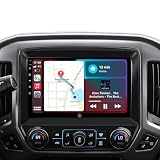
- Factory Bose System Compatible — No Fiber Optic Decoder Required: The Car radio for Chevrolet Silverado and GMC Sierra 2014-2018 is compatible with factory Bose sound systems, allowing you to retain your original premium audio setup without purchasing an additional fiber optic decoder box. But installation may be more complex. When audio is routed through the OEM AUX input, sound output is limited to the front speakers only. Installation and labor costs are not covered in order.
- Wireless CarPlay & Android Auto — Seamless Smartphone Connectivity: Supports both wireless/wired Apple CarPlay/Android Auto, allowing you to access navigation, music, phone calls, and messages directly from your smartphone. Use voice assistants to control apps, send messages, and get directions without taking your hands off the wheel.
- Large Touchscreen with 64GB Storage — Smooth and Expandable System: Features a responsive high-definition touchscreen that provides a clear and comfortable viewing experience for navigation, media, and system controls. Powered by 64GB internal storage, the system offers stable performance and enough storage space for installing apps, downloading offline maps, and storing multimedia files.
- Built-in EQ, Built-in GPS Navigation & Bluetooth: Supports built-in GPS navigation with compatibility for popular online and offline navigation apps. Integrated Bluetooth allows hands-free calling and wireless music streaming, while FM/RDS radio and multimedia playback support provide multiple entertainment options during daily driving. With WiFi connectivity, users can update apps, download new software, and customize their system according to personal preferences.
- Backup Camera & Steering Wheel Control: Supports retention of the factory rear-view camera and includes an additional HD backup camera to improve visibility during parking and reversing. Also compatible with steering wheel controls (SWC), enabling convenient operation without removing your hands from the wheel. These features provide a complete and customizable in-car multimedia and safety experience for DIY users.
If Siri is silent:
- Open Settings and check the Siri settings. On iOS 15, these were generally under Siri & Search; newer versions may use different labels.
- Ensure Siri or “Hey Siri” is enabled. Turning it off and back on can refresh the voice-control path.
- Restart the iPhone.
- Check Siri’s response settings and choose Prefer Spoken Responses where available.
Apple’s current Siri troubleshooting guidance has the latest menu wording.
6. Identify whether the failure is Maps or CarPlay audio
| What works | Likely area to investigate |
|---|---|
| Music works, but Maps is silent | Maps guidance mode, navigation volume, or the navigation audio channel |
| Maps and other navigation apps are silent | Siri, CarPlay audio routing, the head unit, or iOS |
| Siri and Maps are both silent | Siri or the CarPlay voice/audio path |
| Phone audio works on the iPhone but not through CarPlay | CarPlay pairing or vehicle audio routing |
| The phone works in another car | Vehicle compatibility, firmware, USB port, or head-unit behavior |
| Audio returns after switching to radio and back | A temporary audio-source routing glitch |
Testing Google Maps or Waze can help establish whether the problem is Apple Maps-specific. Changing apps is not a guaranteed repair for a broken CarPlay audio path.
7. Reset the CarPlay audio connection
Wired CarPlay
- Disconnect and reconnect the iPhone.
- Try another USB port, making sure it is the port intended for CarPlay.
- Try a known-good cable.
- Remove hubs, extension cables, and adapters while testing.
Wireless CarPlay
- Confirm that Bluetooth and Wi-Fi are enabled.
- Make sure the iPhone is connected to the vehicle’s CarPlay network.
- Open Settings > General > CarPlay and select the vehicle.
- Restart both the iPhone and the infotainment system.
Apple’s CarPlay connection troubleshooting covers both connection types. Wireless CarPlay uses Bluetooth and Wi-Fi; if wireless behavior is unreliable, test a direct wired connection where the vehicle supports it.
8. Switch audio sources to refresh the route
While parked, switch the stereo from CarPlay to radio, then return to CarPlay and restart the route. You can also stop and restart music or a podcast before testing another prompt.
Rank #4

- Hands-Free Calling: This Pioneer in-dash receiver features built-in Bluetooth, enabling easy hands-free calling through compatible smartphones, with crystal-clear sound provided by Pioneer’s included external microphone
- Seamless Smartphone Integration: Enjoy wired Apple CarPlay and Android Auto for easy access to Maps, Music, Messages, Calls, Podcasts, and more—keeping you connected while driving safely
- Customizable Sound: Fine-tune your audio with the 13-band equalizer, allowing you to adjust sound settings to match your car’s acoustics and speaker setup, or choose from multiple EQ presets for an optimized listening experience
- Touchscreen Display: With this 6.8” WVGA capacitive touchscreen display, upgrade your ride and enjoy all the features this head unit has to offer
- Back Up Camera Input (1-Camera): Install a rear-view camera to use the receiver's built in parking guides, featuring customizable parking lines and a full-screen display for clear, easy navigation and safer parking
Some drivers reported that switching between radio and CarPlay restored navigation speech. Treat this as a diagnostic workaround, not confirmation of a single iOS 15 defect. If music pauses or ducks but no instruction is heard, Maps may be requesting audio priority while the spoken stream is failing or being routed incorrectly. See the historical source-switching report.
Independent reader supportYour contribution helps us test, update, and keep practical guides available for everyone.9. Update, then forget and reconnect the car
Install the latest iOS version supported by your iPhone and check the vehicle manufacturer’s infotainment updates or CarPlay service bulletins. An iOS update may address compatibility issues, but do not assume that any particular release fixes this symptom for every car.
If ordinary reconnection fails, remove the vehicle from the iPhone:
Free tools Windows power users keep installed
One-click scans. No signup required.
- Open Settings > General > CarPlay.
- Select the vehicle and choose the option to forget or remove it.
- Restart the iPhone.
- Delete the phone from the car’s Bluetooth or infotainment device list as well.
- Pair or connect the vehicle again.
The exact label can vary by iOS version. This step resets the CarPlay relationship; it does not delete Maps data or require an iPhone factory reset.
Best Value

- 【Hardware and android car stereo System 】Quad Core+Android +[2G+64G]+capacitive touchscreen(1024*600)+ Compatible with carplay radio+Android Auto+DSP+FM+/WiFi/BT+car GPS Navigation+car stereo with backup camera.Binize carstereo touchscreen radio multimedia player allows you to use any application,such as video apps etc.
- 【Compatible with wireless Carplay&Android Auto】This touch screen car stereo with car play radio car stereo and wired Android Auto double din stereo features just connect with your smartphone that make it possible for you to access map navigation,phone.
- 【GPS Navigation&WIFI Receiver】This compatible with Toyota RAV4 2013-2018 radio Support download,install and delete over thousands of android apps.With wifi/hotspot connected,you can download apps you like and use online maps such as.You can download offline map from play store.
- 【FM RADIO】Binize Compatible with Toyota RAV4 2013-2018 car stereo with preset FM radio stations, supports collection of your favorite stations and listening to live news, music and programs, to ensure a funny journey even with no network.
- 【Top-Notch Customer Service】If you do have any issues, Binize carstereo customer service team will do whatever it takes to help you figure it out. So if you encounter any problem before or after sale, no rush to give up or return the product, just contact customer service via Amazon email.
What the iOS 15 reports do—and do not—show
Apple Community discussions from September 2021 onward describe missing Maps speech, altered volume behavior, and CarPlay voice-input failures after iOS 15 updates. Reports include problems affecting more than one navigation app and cases that varied by vehicle:
These reports show that the symptom was real for some phone-and-car combinations. They do not establish that iOS 15 permanently removed voice guidance or caused one confirmed failure on every device. In 2026, iOS 15 is a legacy version, so current users should distinguish those historical reports from Apple’s present troubleshooting guidance.
When to contact Apple or the car manufacturer
Contact Apple when the problem follows the same iPhone across multiple vehicles, especially if Maps, Siri, and other navigation apps fail. Contact the vehicle manufacturer when multiple phones fail in the same head unit or when the affected iPhone works normally in another car.
Have these details ready: iPhone model, iOS version and build, vehicle year and model, wired or wireless connection type, infotainment firmware, and which features work—music, phone calls, Siri, Apple Maps, and other navigation apps.
Quick Recap
Product prices and availability are accurate as of the date/time indicated and are subject to change. Any price and availability information displayed on Amazon at the time of purchase will apply.




