Free tools Windows power users keep installed
One-click scans. No signup required.
Siri can handle directions, calls, music, reminders and many messages without you picking up your iPhone. The safest setup is to combine CarPlay (or Siri Eyes Free), Driving Focus, selective Announce Notifications and a steering-wheel voice button. That reduces manual phone handling, but it does not make driving a risk-free multitasking activity: pull over whenever a request needs visual checking, editing or troubleshooting.
Set up the safety foundation before you drive
Turn on Driving Focus
- Open Settings and tap Focus.
- Tap Add if Driving is not listed, then choose Driving.
- Tap Customize Focus and choose the people and apps that may interrupt you.
- Under While Driving, choose how it starts: Automatically, When Connected to Car Bluetooth, Manually or Activate With CarPlay.
For a regular CarPlay user, Activate With CarPlay is usually the most predictable trigger. Bluetooth activation is useful in cars without CarPlay, but it can also turn on when you are a passenger or when the phone connects to another compatible audio system. Automatic motion detection can likewise mistake a passenger for the driver. Turn Driving Focus off only when appropriate, and do so while parked.
Configure an Auto-Reply
Go to Settings > Focus > Driving > Auto-Reply. Apple lists No One, Recents, Favorites and All Contacts; you can edit the reply text. People may still mark a message as urgent, so Auto-Reply is not an absolute communications block. See Apple’s current instructions at Apple’s Driving Focus guide.
Have Siri announce only the notifications you can handle
On the iPhone, open Settings > Notifications > Announce Notifications > CarPlay, turn on Announce Messages, and choose whether Siri announces Time Sensitive and Direct Messages or All Notifications. CarPlay may also provide Settings > Announce Messages. Start with time-sensitive and direct messages; reading every app alert aloud can create its own stream of interruptions.
#1 Best Overall

- YOUR AI PERSONAL ASSISTANT FOR EVERYDAY PRODUCTIVITY: More than a voice recorder, Pocket works as your AI personal assistant to capture, transcribe, and summarize meetings, calls, and ideas instantly. Core features are included out of the box, with optional advanced tools available for power users.
- ONE-TAP RECORDING FOR REAL-LIFE MOMENTS: Capture meetings, phone calls, and in-person conversations instantly with a simple tap, no typing, no interruptions, just effortless note-taking anywhere you go.
- SMART AI INSIGHTS & ORGANIZATION: Pocket automatically turns recordings into clear summaries, key action items and structured conversation maps so you can quickly review what matters without digging through audio.
- TURN CONVERSATIONS INTO ACTION WITH “ASK POCKET”: Don’t just record, understand. Instantly ask questions across your meetings, extract key insights and generate next steps in seconds. All grounded in your recordings, so answers stay accurate and reliable.
- MAGSAFE COMPATIBLE FOR SEAMLESS USE: Easily attach Pocket to your iPhone or other MagSafe compatible devices for convenient, hands-free recording on the go. Perfect for capturing meetings, calls, and ideas without needing to hold your device.
Siri can announce the sender and read a message. For a long message it may initially say only that the sender sent one; ask Siri to read the full message if doing so will not distract you. These controls and their availability can vary by app, language, region and iOS version. Apple documents the feature for iOS 15 and later in its CarPlay guide and Announce Messages guide.
Choose whether Siri sends messages automatically
In CarPlay, open Settings > Siri (or Apple Intelligence & Siri) and select Automatically Send Messages. With it enabled, Siri can send a dictated message without asking for a final confirmation unless you ask Siri to change or cancel it.
Rank #2
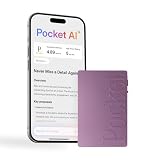
- YOUR AI PERSONAL ASSISTANT FOR EVERYDAY PRODUCTIVITY: More than a voice recorder, Pocket works as your AI personal assistant to capture, transcribe, and summarize meetings, calls, and ideas instantly. Core features are included out of the box, with optional advanced tools available for power users.
- ONE-TAP RECORDING FOR REAL-LIFE MOMENTS: Capture meetings, phone calls, and in-person conversations instantly with a simple tap, no typing, no interruptions, just effortless note-taking anywhere you go.
- SMART AI INSIGHTS & ORGANIZATION: Pocket automatically turns recordings into clear summaries, key action items and structured conversation maps so you can quickly review what matters without digging through audio.
- TURN CONVERSATIONS INTO ACTION WITH “ASK POCKET”: Don’t just record, understand. Instantly ask questions across your meetings, extract key insights and generate next steps in seconds. All grounded in your recordings, so answers stay accurate and reliable.
- MAGSAFE COMPATIBLE FOR SEAMLESS USE: Easily attach Pocket to your iPhone or other MagSafe compatible devices for convenient, hands-free recording on the go. Perfect for capturing meetings, calls, and ideas without needing to hold your device.
Leaving confirmation on is the safer starting point. If you enable automatic sending, keep messages short and unambiguous, and avoid dictating names, street numbers, links or sensitive information until you know how accurately Siri recognizes your voice and contacts. Apple describes the setting in Messages with CarPlay.
Activate Siri without reaching for the screen
With CarPlay, Apple documents three activation methods:
The Tool Desk
Outbyte Driver Updater FREEFix the driver behind crashes, sound loss and screen glitchesFind Drivers →Outbyte PC Repair FREERepair Windows errors before they cause bigger problemsFix Now →Rank #3

- REAL-TIME VOICE TRANSLATION: Choose two of 165 supported languages in the ConTutor App. When used with a stable internet connection, CT-06 identifies which selected language is being spoken and plays translated audio through its built-in speaker, with responses as fast as 0.5 seconds.
- NO SUBSCRIPTION: Connect the portable translator to most iOS and Android phones or tablets with Bluetooth 6.0. The app and internet access are required during use; offline translation is not supported.
- AI-ASSISTED LANGUAGE PRACTICE: Use it for trips, business meetings, classrooms, and bilingual family conversations. For clearer recognition, speak with in 3.3 ft or 1 m in a quiet setting.
- SMART VOICE CONTROLS: Hold the microphone button to start or stop translation, adjust the device volume, and play or pause audio. The 400 mAh battery provides up to 12 hours of use, 35 hours of standby, and a full charge in about 1 hour via USB-C (5 V/1 A).
- WEARABLE TRANSLATOR: The compact 1.44 oz device measures 2.36 x 2.36 x 0.39 inches. Use the collar clip or included lanyard to keep it accessible while traveling, working, or shopping.
- Steering wheel: press and hold the vehicle’s voice-command button until Siri beeps, then speak. Holding the button while talking can help Siri detect when your request ends.
- CarPlay display: touch and hold the CarPlay Dashboard or Home button.
- Voice phrase: say “Hey Siri” in vehicles that support it.
The steering-wheel button keeps your hand closest to the controls and your eyes on the road. A short press and a long press may invoke different assistants; many cars use a short press for the vehicle’s own system and a long press for Siri. Check the vehicle manual and test the behavior while parked.
When CarPlay is unavailable: Siri Eyes Free
Some vehicles support Siri Eyes Free. Pair the iPhone over Bluetooth, then press and hold the steering-wheel voice button until the Siri tone and speak. The feature is vehicle-specific, and ordinary Bluetooth calling does not guarantee Siri Eyes Free. Apple’s Siri in your car documentation directs owners to their vehicle manual for pairing and voice-control details.
Rank #4

- HANDS-FREE MAGNETIC PHONE STAND DESIGN: This AI voice recorder is built into a 360 Spin magnetic stand that attaches securely to your smartphone, allowing stable, hands-free recording during meetings while keeping your phone visible for notes or video calls.
- REAL-TIME AI TRANSCRIPTION IN 100+ LANGUAGES: The recorder converts speech to text in real time with over 95% accuracy, supports more than 100 languages, and automatically generates transcripts, summaries, overviews, and mind maps through the companion app.
- APP-BASED RECORDING, PLAYBACK & AI SUMMARY: All recordings are managed through the Echomeet app, where you can listen to audio, view full transcriptions, and access AI-generated summaries and mind maps across your devices.
- MULTI-DEVICE SYNC WITH 1TB CLOUD STORAGE: Recordings and notes sync seamlessly across Windows, Mac, iOS, Android, and tablets, with up to 1TB of cloud storage to keep your meeting data accessible anytime, anywhere.
- MANUAL ONE-BUTTON CONTROL FOR PRIVACY: Recording starts and stops only when you press the button, preventing accidental or voice-activated recording and giving you full control over when audio is captured.
Useful Siri commands for a moving car
Short, single-purpose requests are easier to repeat if road noise or a name causes a mistake. Siri’s exact response depends on your language, location, connected apps and vehicle.
Directions and travel
- “Hey Siri, give me directions to [destination].”
- “Find the nearest gas station.”
- “Avoid tolls.”
- “What’s my ETA?”
Calls
- “Call [contact].”
- “Call [business].”
- “Answer the call.”
- “End the call.”
Messages
- “Read my messages.”
- “Reply: I’m driving and will call you later.”
- “Send a message to [contact].”
- “Tell [contact] I’ll be there in 20 minutes.”
Music and podcasts
- “Play my driving playlist.”
- “Pause.”
- “Skip this song.”
- “Play more songs like this.”
- “Play the latest episode of [podcast].”
Information, reminders and arrival tasks
- “What’s the weather at my destination?”
- “What’s my next calendar event?”
- “Remind me to buy windshield washer fluid when I get home.”
- “Open the garage door when I get home,” where a supported HomeKit setup permits it.
Compatible third-party navigation, audio, messaging, calling, EV-charging, parking and ordering apps can expose controls in CarPlay; not every app supports Siri commands. Apple lists supported app behavior in Use other apps with CarPlay.
Windows Errors? Fix Them Before They Spread
Repair common Windows errors and clear accumulated junk for a smoother, more stable PC - no reinstall needed.Free scan · no reinstallOutdated Drivers Are Slowing You Down
One free scan finds every outdated or missing driver and matches the right update for your exact hardware.Free scan · exact hardware matchBest Value

- 🎙️ Hands-Free Voice Typing for Windows & Mac – Powered by iOS & Android dictation technology, AI VoiceWriter allows fast, accurate speech-to-text directly on your desktop. Simply speak, and your words appear in real time. Compatible with Windows 10 & above, macOS 13 & above.
- ✍️ AI Writing Assistant for Effortless Editing – Boost productivity with AI proofreading, rephrasing, and formatting. Perfect for emails, reports, creative writing, and professional content.
- 💻 Works Seamlessly in Any Desktop App – Type with your voice in Microsoft Word, Google Docs, PowerPoint, Teams, emails, and more. Just place your cursor in any text field and start speaking!
- 📱 Mobile App for Enhanced Voice Input – The AI VoiceWriter mobile app enhances voice recognition by using your phone’s microphone as an input device for clearer, more accurate dictation—while typing on your desktop. Supports iOS 15 & above, Android 9.0 & above.
- 🌎 Multilingual Voice Typing & AI Assistance – Supports 33 languages for dictation, plus AI-powered features in Chinese, English, Japanese, Korean, French, German, Spanish, Italian and, Swedish.
What to do when Siri gets it wrong
- Repeat the request in simpler words and ask for one action at a time.
- For a misunderstood contact, destination or street number, do not start editing the screen while moving.
- If Siri asks follow-up questions that require concentration, wait until traffic conditions permit or pull over.
- If CarPlay or Bluetooth disconnects, keep driving and reconnect only after parking.
- Weak cellular coverage, cabin noise, a poor vehicle microphone or unsupported third-party commands can prevent a request from working.
- If a message matters and Siri cannot dictate it reliably, wait until you are parked.
CarPlay versus Bluetooth and Siri Eyes Free
| Setup | What it provides | Requirements and limits |
|---|---|---|
| CarPlay | Steering-wheel or CarPlay Siri activation, integrated maps, calls, messages, audio and CarPlay-specific announcements. | Compatible iPhone, Siri enabled, supported vehicle or aftermarket receiver, supported country or region, and wired or wireless connection as the vehicle permits. Wireless reliability and feature availability vary by model and trim. |
| Bluetooth plus Siri Eyes Free | Voice activation through a compatible steering-wheel button without a CarPlay dashboard. | Only some vehicles support it; pairing, microphone performance and available app functions vary. Bluetooth calling alone does not add Siri Eyes Free. |
| Bluetooth plus a phone mount | Hands-free calls and Siri requests on vehicles without either integrated system. | Does not provide the integrated CarPlay display or CarPlay message features. A mount improves visibility but does not make manual interaction safe while moving. |
CarPlay requires a compatible iPhone, Siri, a compatible vehicle or receiver and a supported region. If you are unsure, check the vehicle manufacturer’s compatibility information in Apple’s CarPlay instructions.
Reduce phone handling, not your attention to driving
NHTSA defines distraction as any activity that diverts attention from driving, including adjusting navigation, audio or other vehicle systems. In 2024, distracted-driver crashes killed 3,208 people and injured more than 315,000, according to NHTSA. NHTSA says reading or sending a text takes your eyes off the road for about five seconds—roughly a football field at 55 mph.
Voice control can reduce visual and manual distraction, but hands-free use can still create cognitive distraction. A short request to start navigation is different from a complicated conversation or a long dictated message. U.S. rules also vary by state, driver type and circumstance; commercial drivers face additional federal restrictions. Check NHTSA’s distracted-driving law information, the FMCSA rules and the IIHS state-law overview where you drive.
Quick Recap
A practical pre-drive checklist
- Connect the iPhone to CarPlay or Bluetooth before shifting into gear.
- Start navigation and confirm the destination while parked.
- Turn on Driving Focus and select its allowed people and apps.
- Choose CarPlay activation or the correct Bluetooth automation.
- Set Auto-Reply if you want contacts to know you are driving.
- Enable Announce Messages selectively, beginning with time-sensitive and direct messages.
- Leave automatic message sending off until you have tested Siri; if you enable it, use brief, clear messages.
- Place the phone in a secure mount or out of reach.
- Use the steering-wheel voice button or “Hey Siri” rather than reaching toward the touchscreen.
- Pull over before reading, composing, editing, reconnecting or troubleshooting anything Siri cannot complete by voice.
Product prices and availability are accurate as of the date/time indicated and are subject to change. Any price and availability information displayed on Amazon at the time of purchase will apply.




