Yes, you can use an iPad as a standalone in-car dashboard for navigation, music, podcasts, voice commands, trip information, and—when paired with extra hardware—OBD-II vehicle data. The iPad must be mounted securely, supplied with power, given a reliable location source, and connected to the car’s speakers.
There is one important limitation: an iPad is not a native Apple CarPlay receiver. Apple supports CarPlay on iPhone, not iPad. Plugging an iPad into a CarPlay-equipped USB port will not turn the vehicle’s built-in screen into an iPad display. The iPad can still provide audio over Bluetooth, USB, or an auxiliary input, but it remains a mounted tablet rather than a factory-style infotainment system.
What an iPad can—and cannot—do in a car
“Using an iPad as an in-car dashboard” can mean several different things. It may be a larger navigation screen, a media and podcast controller, a voice-controlled travel assistant, a GPS speed display, an OBD-II information screen, or a replacement for an old car’s unusable infotainment display.
It should not be treated as a replacement for the vehicle’s safety systems, factory warning indicators, backup-camera system, climate controls, or every steering-wheel function.
The Tool Desk
Outbyte PC Repair FREEClear out junk files and repair common Windows errorsFree Scan →Outbyte Driver Updater FREEScan for outdated or missing drivers - takes under a minuteDriver Scan →#1 Best Overall
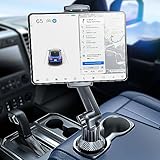
- 👍【Stable & Durable Tablet Holder】:This iPad holder is designed to be installed in your car's cup holder for easy use. We have increased the weight of the tablet stand's base. We have also utilized a more durable Premium Military-grade PTFE material, making the iPad car mount even more resilient and long-lasting. 3 Extension Pads allow the car tablet holder base to expand its diameter up to 3.9 inches. Please ensure your car cup holder's diameter falls between 2.5" and 3.9" before purchasing.
- 👍【Extra Deep & Large Clamp】:With a maximum depth of 1.57” (40MM) and a maximum opening width of 9.6” (245MM), eSamcore tablet car mount can securely hold any iPad or cell Phone with a super thick protective case. The clamps come with protective soft silicone pads, which prevent your iPad from being damaged while being securely held. With our car iPad holder’s robust and sturdy design, you can trust that your tablet will stay firmly in place while driving, even on bumpy roads.
- 👍【Foldable 15" Height Car iPad Holder for Cup】: The total height of this eSamcore tablet cup holder mount is 15". You have the freedom to adjust the height of the cup holder iPad mount according to your needs. The clamp can rotate 360 degrees, offering optimal flexibility. The reinforced arm ensures the stability and durability of the iPad car mount cup holder. Compared to gooseneck iPad cup holder, our rigidly connected arm iPad holder provides even better stability.
- 👍【Compatible with 6"-12.9" Tablet & Cell Phone】: This eSamcore iPad holder for car is compatible with all 6" – 12.9" devices, such as iPad 9.7" / 10.2". Fit For iPad Air 9.7" /10.5" /10.9", iPad Mini 3/ 4/ 5/ 6, iPad Pro 9.7"/ 10.5" /11" /12.9". Fit For kindle fire 2023, Fire 10, For Nintendo Switch, Compatible for Samsung Galaxy Tab A7 A8, S6, S7, S8, Android tablet. Also fit cell phone such as iPhone 14, 13, 12, Pro, Pro Max, Mini, galaxy s23/ S22 ultra, z fold 3/ 4.
- 👍【iPad car mount suitable for high-temperature climates】: Perfect for hot climate areas like AZ and TX. This eSamcore tablet holder for car cup holder eliminates worries about the high temperature melting the adhesive of traditional sticky tablet car mount. It keeps your dashboard clean and tidy; ensuring cup holder iPad mount never blocks your view of the road or obstructs your air vent.
| Goal | Can the iPad do it alone? | What else may be needed |
|---|---|---|
| Navigation | Yes | GPS/location capability and internet access, or downloaded offline maps |
| Music and podcasts | Yes | Bluetooth, USB playback, or an auxiliary audio connection |
| GPS speed or trip display | Yes, with a location source | Wi-Fi + Cellular iPad or external Bluetooth GPS receiver |
| Live engine data | No | OBD-II adapter and a compatible app |
| Apple CarPlay receiver | No, not natively | Separate portable CarPlay display or aftermarket head unit |
| Steering-wheel integration | Usually no | Compatible vehicle hardware or aftermarket receiver |
| Backup-camera display | Not normally | Specialized camera and vehicle-integration hardware |
| Factory vehicle controls | No | Vehicle-specific integration hardware |
Apple’s own documentation explains that CarPlay is designed for iPhone. iPad can connect to a car for Bluetooth or USB playback, but it does not natively receive and display an iPhone’s CarPlay interface. See Apple’s CarPlay and iPad guidance before buying equipment advertised as “CarPlay for iPad.”
Choose the right iPad before buying a mount
The most important choice: Wi-Fi-only or Wi-Fi + Cellular?
For a driver-facing navigation setup, a Wi-Fi + Cellular iPad is usually the better choice. Apple lists GPS/GNSS on Wi-Fi + Cellular models, so the iPad can determine its position while the vehicle is moving. Cellular service is optional; you can still use downloaded maps without subscribing to an iPad data plan.
A Wi-Fi-only iPad generally has no built-in GPS/GNSS receiver. It can estimate location from nearby Wi-Fi networks, which may work at home or in a parking lot but is not dependable for moving navigation. A phone hotspot supplies internet access; it does not add GPS hardware to a Wi-Fi-only iPad.
If you already own a Wi-Fi-only iPad, the practical solution is a compatible external Bluetooth GPS/GNSS receiver. Confirm that the receiver works with iPadOS and with the specific navigation app you intend to use. Apple’s location-services explanation and Bad Elf’s guidance on external GPS for Wi-Fi-only iPads describe the distinction.
| iPad type | Best use | Main trade-off |
|---|---|---|
| Wi-Fi + Cellular | Regular navigation and long trips | Higher purchase price and possible data-plan cost |
| Wi-Fi-only with phone hotspot | Occasional online use or passenger use | Hotspot provides data but does not solve the GPS limitation |
| Wi-Fi-only with offline maps | Occasional navigation in prepared areas | Still needs an external GPS receiver for dependable moving location |
| Wi-Fi-only with Bluetooth GPS | Owners who already have a suitable receiver | Additional cost, charging, pairing, and another possible failure point |
iPad mini or a larger iPad?
The current iPad mini A17 Pro has an 8.3-inch display and weighs approximately 293 grams for Wi-Fi models or 297 grams for Wi-Fi + Cellular models. The current standard iPad weighs approximately 477–481 grams. The mini’s smaller size and lower weight generally make it easier to position without blocking the road, though that is a practical inference rather than a rule that applies to every vehicle.
A larger iPad gives passengers and drivers a bigger map, but it also demands a stronger mount and creates more potential for vibration, glare, heat, obstruction, and theft. Check the iPad mini specifications and standard iPad specifications for the exact dimensions and weight of the model you own.
Check model and software support
- Open Settings > General > About and note the model name and software version.
- Open Settings > General > Software Update and install a supported update if appropriate.
- Check that Apple Maps, Google Maps, Waze, music apps, and any intended OBD app still support the iPad model and iPadOS version.
- Check the cellular model’s carrier and band compatibility if you are buying an older used iPad.
Apple’s current software page should be treated as the authority because version numbers and supported models change. The supplied current listing identifies iPadOS 26.6 as of August 9, 2026, but verify your own device under Settings > General > Software Update. Apple’s iPadOS compatibility guide also notes that features can vary by model, region, language, and carrier.
Hardware checklist
- An iPad, preferably Wi-Fi + Cellular for independent navigation.
- A model-specific protective case, cradle, or tablet holder.
- A stable vehicle mount.
- A compatible Lightning or USB-C charging cable.
- A reputable car charger, preferably USB-C Power Delivery for a USB-C iPad.
- Cellular data, a phone hotspot, downloaded maps, or an external GPS receiver.
- Bluetooth, USB, or 3.5-mm auxiliary audio capability in the car.
- Optional OBD-II adapter and compatible app for vehicle data.
- Optional anti-glare screen protector.
- Optional quick-release or locking mount to reduce theft risk.
Mount the iPad safely
Mounting is not just a comfort issue. A tablet that detaches during hard braking can become a projectile, while a screen positioned in the wrong place can obstruct the road, an instrument display, a defroster, or an airbag.
Mount types
| Mount | Advantages | Limitations |
|---|---|---|
| Vehicle-specific dashboard bracket | Usually more stable and better positioned than a generic mount; can be tailored to a vehicle | More expensive and may require trim removal; must match the exact vehicle and iPad |
| Friction or weighted dashboard base | No drilling, easy to move between vehicles, often stable on a flat dashboard | Uses dashboard space, can slide in a hard maneuver, and can become hot in direct sun |
| Suction cup | Easy to install, remove, and adjust | Heat and rough roads can weaken the seal; windshield placement may obstruct vision or violate local rules |
| Vent mount | Compact and close to the driver | May block airflow or defrosting, expose the iPad to hot or cold air, and overload weak vent slats |
| Magnetic mount | Fast attachment and a clean appearance | The magnetic connection must be rated for the iPad’s weight and vibration; cases and plates may interfere with charging |
Tablet-specific systems from companies such as RAM Mounts illustrate the difference between a proper tablet cradle and a generic phone holder. This is an example of the type of hardware to investigate, not a claim that one mount fits every car or iPad.
Placement rules
- Keep the iPad below the windshield’s critical sightline and outside the driver’s direct view through the road ahead.
- Do not cover dashboard, A-pillar, or steering-wheel airbag zones.
- Do not block the instrument cluster, hazard controls, gear selector, vents, or defrosters.
- Avoid a position that requires looking far down or far to the side.
- Use a cradle that grips the tablet. Do not rely only on weak adhesive or an unrated magnet.
- Press the screen firmly while parked, then test the mount on a short, familiar route with rough pavement.
- Route the charging cable away from pedals, the steering wheel, shifter, and airbag paths.
- Remove the iPad whenever you leave the vehicle. A quick-release mount makes this realistic.
A bigger map is not automatically safer. NHTSA defines distracted driving in terms that include interacting with navigation and entertainment systems, and distinguishes visual, manual, and cognitive distraction. Set the route before moving, use voice control, and pull over before changing complicated settings.
Rank #2

- Powerful Tablet Clamp: Thicker and tighter clamp of car ipad holder can provide a greater grip to hold all 6" to 11" diagonal tablets(The maximum opening distance of the clamps is 9 inch). Extended side arms with soft rubber pads make eSamcore ipad car mount suitable for tablet with normal protective case(Thickness below 0.9 Inch). Anti-slip silicone pad of clamp prevents iPad slipping from car tablet holder when driving on the bumpy road. Good car accessories gift and travel essentials for family!
- Wide Compatibility: This eSamcore tablet holder for car dashboard is compatible with all 6" - 11" devices, such as iPad Pro 9.7/10.5/11, iPad Air 9.7/10.5/10.9, iPad, iPad Mini 2/3/4. All Samsung Galaxy Tab, Android tablet, large screen cell phone such as folding Phone, z fold 3, iPhone 13, iPhone 12, Galaxy S21/S21 Plus/S21 Ultra, Galaxy Note 20/20 Ultra S20/S20 Plus/S20 Ultra, iPhone 11 Pro Max, iPhone Xs Max, iPhone 12 Pro Max.
- Unobstructed View iPad Car Holder: With upgraded downward extending mount arm, eSamcore dashboard iPad holder for car will not block your view of the road. You can adjust the tablet car mount arm up and down in 140° through the security lock to fit your dashboard. With 360°rotating ball joint, eSamcore iPad mount for car can also be switched between portrait and landscape view.
- Suction Cup Tablet Car Mount: Simple 3-step lock mechanism provides extremely strong suction power for our eSamcore tablet car holder. The suction cup is coated with a layer of sticky gel to prevent air gaps generation. ❤️️ A flat and clean surface will create a stronger suction power for ipad holder. ❤️️Before installation, Please clean the dashboard and dry it completely.
- Reusable Suction Cup: Our eSamcore tablet holders are made of durable engineered plasticThe suction cup is reusable and washable. If the surface of the suction cup is dirty or lost its stickiness, please rinse it in water and leave the suction cup to dry completely. After that, the suction cup of car tablet mount will restore the stickiness.
Device-mounting laws differ by country, state, vehicle type, and position. Do not assume that a dashboard or windshield mount is legal everywhere. Check the applicable local rules for windshield obstruction and touchscreen interaction. For example, California DMV guidance addresses mounted devices, visibility, and driver interaction; it is not a substitute for checking the law where you drive.
Provide internet access—and understand that internet is not GPS
Option 1: Use cellular data on the iPad
A cellular iPad can use a carrier data plan independently of your phone. Apple describes iPad cellular service as data-only, not ordinary cellular phone service. Depending on the model and market, cellular iPads may use eSIM rather than a physical SIM. See Apple’s iPad cellular setup information and cellular-data guide.
Recommended Free Tools
This is the cleanest arrangement: the iPad can obtain its own map updates and live traffic data, while its built-in GPS/GNSS supplies location. A cellular plan is not mandatory if you prepare offline maps.
Option 2: Use your phone’s hotspot
A hotspot is inexpensive and convenient for a Wi-Fi-only iPad. It can provide map searches, traffic updates, music streaming, and other online services. The phone must remain nearby, connected, and sufficiently charged, and the hotspot may disconnect.
Again, a hotspot supplies internet, not a GPS receiver. A Wi-Fi-only iPad may still need an external Bluetooth GPS/GNSS receiver for dependable moving navigation.
Option 3: Download maps in advance
Offline maps are valuable for rural driving, road trips, international travel, and any route where cellular coverage is uncertain. Download them while connected to reliable Wi-Fi, then test them before leaving.
Quick wins for a faster PC:
Clear out junk files and repair common Windows errorsFree Scan →Scan for outdated or missing drivers - takes under a minuteDriver Scan →Repair Windows errors before they cause bigger problemsFix Now →Apple Maps offline setup
- Open Maps.
- Tap your profile picture or initials beside the search field.
- Tap Offline Maps.
- Tap the Add button.
- Search for a location or choose Current Location.
- Resize the selected area to cover the trip.
- Tap Download.
- Return to Offline Maps and confirm that the area appears. Enable automatic updates if desired.
Apple says offline Maps can provide driving directions, turn-by-turn guidance, estimated arrival time, and some place-card information, but availability varies by country or region. Downloading map data does not eliminate the need for a location source: a Wi-Fi-only iPad without external GPS may still fail to track the vehicle accurately. See Apple’s offline Maps instructions.
Google Maps offline setup
- Open Google Maps while online.
- Search for a destination.
- Tap the location name or address.
- Tap More.
- Tap Download offline map.
- Adjust the map area and tap Download.
For offline Google Maps driving navigation, the entire route must fall within the downloaded area. Offline mode does not provide live traffic information or alternative routes. Google’s official offline-map instructions explain the restrictions.
Why Waze is a poor offline-only choice
Waze is built around an active data connection. Without internet access, you can lose route calculation, live traffic, hazard reports, and other core features. It is therefore a poor sole navigation app for a Wi-Fi-only iPad or an area with unreliable coverage. See Waze’s internet-connection guidance before depending on it for a remote journey.
Set up navigation before driving
Apple Maps
- Open Settings > Privacy & Security > Location Services and turn Location Services on.
- Allow Maps to use your location.
- Open Maps and search for a destination, or touch and hold a location.
- Tap Directions.
- Select driving mode.
- Confirm the route and tap Go.
For ordinary directions, Apple says Maps needs both Location Services and an internet connection. Downloaded offline maps provide a separate offline option where supported. The Apple Maps guide has the current interface and route controls.
Rank #3

- 【 Unique Biaxial Extension Arm】 Twist the extendable arm in different angles allowing you to change the view distance, great for enjoying entertainment with family and friends; The articulating arm is easy to pull out or retract as needed, kids can also operate easily
- 【 Metal Crossbar for Headrest】 Out of a considerate thought, the hook's depth on both ends of the tablet car mount is deeper, the headrest mount which is made of high-quality metal also helps greatly increase the stability during driving; The anti-slip rubber pads protect the tablet from scratching and slipping, keep your device safe
- 【 Easy Installation & 360° Rotation】 Normally it only takes 5s to complete the installation, no tools are needed; The 360 degree rotating ball allows you to find the best view angle so kids don't have to look down the whole time, avoid neck pain, making it a great car accessory for kids
- 【 Devices Compatibility】The universal headrest tablet mount is suitable for 4.7 - 11" devices, such as 2025/ 2024/ 2022 iPad Pro 11, 2022 iPad 10.9/ iPad 10th Generation, iPad Air 6, iPad Pro 10.5/ 9.7, iPad Mini, Galaxy Tab S10/ S9, Kindle, Fire HD, iPhone Air, 18 Pro Max, 17, 16, 15, 14, 13, 12, Galaxy S25 Ultra, other smartphones and tablets; The max thickness the clip can fit is 0.67" (17mm), 4.7 - 11" refers to the diagonal length of the tablet screen, the suitable width of screen is 5.5 - 8.6"
- 【 Wider Headrest Compatible】 This new version can fit headrest with narrower rod distance, the adapted distance range of headrest rods is 2.8" ( 72 mm) - 5.9" ( 150 mm), which can fits SUV, Pickup truck, Sedan and more; NOTICE: can't fit the backseat without headrest rods
Spoken directions
Start navigation, tap the audio control on the map, and select the desired spoken-directions setting. Raise both the iPad volume and the car stereo volume if necessary.
Additional controls appear under Settings > Apps > Maps > Spoken Directions, including Directions Pause Spoken Audio, Directions Wake Device, and—on supported vehicles—Directions on Radio. The available labels can vary by iPadOS version and vehicle. Apple documents these controls in its spoken-directions guide.
Siri and voice control
Use Siri to reduce screen touches. Depending on your settings, examples include:
- Give me driving directions home.
- Find a gas station.
- Find a charging station.
- Share my ETA.
- Report an accident.
- Stop navigating.
Prepare the destination while parked whenever possible. Apple’s Siri navigation guide lists the commands and capabilities available in the current iPadOS release.
What’s actually slowing this PC down?
Pick the symptom - the matching free tool is one click away.
Connect the iPad to the car’s audio
Bluetooth: the simplest option
- Put the car stereo into Bluetooth-pairing mode.
- On the iPad, open Settings > Bluetooth and turn Bluetooth on.
- Tap the vehicle stereo when it appears.
- Enter the vehicle PIN if requested.
- Choose the car as the audio destination in the iPad’s playback controls.
Apple’s pairing instructions assume the iPad is within approximately 33 feet or 10 meters of the accessory. In a vehicle, the iPad will normally be close enough, but the stereo may still need to be set to its Bluetooth media source. If navigation audio comes from the iPad rather than the car, check both the iPad output destination and the stereo’s selected source. See Apple’s Bluetooth instructions.
USB playback
Some vehicles can play audio from an iPad over USB. This is vehicle- and stereo-dependent. It does not mean the car supports iPad apps or iPad display mirroring.
When USB playback fails:
- Unlock the iPad and leave it on the Home Screen.
- Connect it with a compatible cable.
- Select the vehicle’s USB or media source.
- Try another USB port or cable.
- Test audio from another app.
- Update the iPad and vehicle-stereo firmware if an update is available.
Apple’s car-connection troubleshooting explains why USB playback and CarPlay are separate functions. A CarPlay USB port may charge an iPad or recognize it as an audio device without displaying anything on the vehicle’s screen.
Auxiliary input
If the car has a 3.5-mm auxiliary input, a USB-C iPad can use a compatible USB-C-to-3.5-mm audio adapter. This carries sound only. It does not create CarPlay, steering-wheel integration, or control of the vehicle’s built-in systems. Older Lightning iPads require the appropriate Lightning audio adapter.
Power the iPad continuously
Navigation with a bright display, cellular data, Bluetooth, and spoken audio can consume power continuously. A car’s basic USB port may not supply enough power to maintain the battery, particularly in hot weather.
- Use a reputable car charger and a cable matched to the iPad’s connector.
- For USB-C iPads, prefer a USB-C Power Delivery adapter.
- Apple lists 15 watts as the minimum output for a recommended third-party USB-C power adapter; higher-wattage adapters can charge compatible iPads faster.
- Route the cable so it cannot reach the pedals, steering wheel, shifter, or airbag deployment areas.
- Use a right-angle cable if a straight connector protrudes from the mount.
- Keep a spare cable in the vehicle.
If the battery still falls while plugged in, reduce screen brightness, remove a heat-trapping case, use a stronger USB-C PD adapter, and test whether the vehicle’s USB port is a low-power charging port. If the iPad is hot, stop charging temporarily and cool it. Apple’s charging guidance covers adapter output and charging behavior.
Rank #4

- Fits: Removable headrests with metal posts (0.4″–7.1″ apart). ⚠️ Doesn't Fit: Fixed headrests Tesla Volvo Chevy Tahoe/Suburban GMC Yukon/Sierra Honda Pilot/CR-V Jeep Wagoneer. Need help? Check your headrest for 2 Round metal poles
- Enhanced Road Trip Entertainment: Positioned to keep everyone happy on long road trips, play soothing videos and educational videos. Television device car essentials ipad holder for car, kids can also operate easily
- 2026 New Upgrades Toddler Kids Car Activities: 4-Axis 360 with Fixed Knob Folding Shrinking Design, the top choice for family-oriented luxury sedans. The tablet holder can securely hold an iPad or tablet, allowing kids to watch early learning videos, soothing music, or calming audio content
- Sturdy and Safe Design: Reducing distractions for the driver, keep your device safe. Car accesorios para carro ipad car mount hold tablet securely during bumps, fixed nut hook's depth on both ends of the tablet car mount is deeper, increasing the 3X stability during driving. Works seamlessly with convertible car seats (rear-facing and forward-facing), making it a car accessory for kids aged 0-10 years
- Optimal Viewing Angle Adjustment: Car TV for back seat ensures the tablet or screen is always at the optimal viewing angle for your toddler or baby. The arm can rotate and tilt in three axes (up/down, left/right, and forward/backward), allowing for screen positioning no matter the child's height or seating position
Prevent heat, glare, and summer charging failures
Heat is one of the biggest reasons an otherwise good dashboard installation becomes unreliable. Apple says iPad is designed for use in ambient temperatures between 0°C and 35°C (32°F and 95°F). GPS navigation in a hot car or direct sunlight can cause the iPad to dim the display, reduce performance, slow or stop charging, or show a temperature warning.
Apple also advises against leaving an iPad in hot spaces such as a parked car. A vehicle’s interior can become much hotter than the outdoor air, even on a mild day. See Apple’s battery and temperature guidance and its explanation of thermally limited charging.
Do these 3 things before closing this tab:
1Repair Windows errors before they cause bigger problems2Fix the driver behind crashes, sound loss and screen glitches3Clear out junk files and repair common Windows errorsTo reduce problems:
- Keep the iPad out of direct sunlight where possible.
- Do not mount it directly above a hot dashboard vent.
- Leave airflow around the rear of the tablet.
- Remove a thick case if charging creates excess heat.
- Use the lowest brightness that remains readable.
- Change the angle to reduce reflections and glare.
- Use a matte screen protector only if it preserves adequate visibility.
- Remove the iPad from the vehicle when parked.
If charging displays Charging On Hold, move the iPad out of sunlight, disconnect it if necessary, and allow it to cool before relying on it again.
Independent reader supportYour contribution helps us test, update, and keep practical guides available for everyone.Reduce notifications and driver interaction
Create a dedicated driving setup before the first trip:
- Use the iPad’s Driving Focus, or create a custom Focus that allows only essential notifications.
- Silence messages, email, social-media, shopping, and other nonessential alerts.
- Set the destination and start navigation before moving.
- Use Siri for route changes, ETA sharing, and basic audio control.
- Pull over before typing, browsing, changing complex settings, or troubleshooting.
- Never use the iPad for video playback while driving.
iPadOS includes Driving Focus among its available Focus modes. Apple’s automatic-driving documentation is written primarily for iPhone, so do not assume that every iPhone automation behaves identically on an iPad. Check the iPad Focus guide and Apple’s automatic Driving Focus information.
Optional: start a setup when the car connects
A Bluetooth-triggered Shortcuts automation can open Maps, set a Focus, set a preferred volume, or open a music or podcast app when the iPad connects to the vehicle stereo.
Free tools Windows power users keep installed
One-click scans. No signup required.
- Open Shortcuts.
- Tap Automation, then New Automation or the add button.
- Choose Bluetooth.
- Select the vehicle stereo.
- Add the desired actions, such as opening Maps or setting a Focus.
- Turn off Ask Before Running if the action supports automatic execution.
- Test it while parked.
Apple lists Bluetooth as an automation trigger that can run without asking, although individual actions can have their own restrictions. Use Apple’s Bluetooth automation guide and personal-automation guidance for the current labels.
Add speed, trip, and engine data
GPS speedometer
A cellular iPad or an iPad paired with an external GPS receiver can run compatible speedometer and trip-computer apps. GPS speed can differ from the vehicle’s speedometer because the systems calculate speed differently, so treat an app display as supplementary information—not a replacement for legally required or safety-critical vehicle instruments.
OBD-II engine information
An iPad cannot read live engine data by itself. An OBD-II setup requires:
- A compatible OBD-II adapter plugged into the vehicle’s diagnostic port.
- An iPad-compatible app.
- Bluetooth or Wi-Fi communication between the adapter and iPad.
- A vehicle that exposes the particular parameters you want to view.
Examples include the OBDLink app, which supports iPhone and iPad and offers customizable vehicle-data displays, and DashCommand, which supports iOS devices including iPad and uses an OBD interface for vehicle information and logging.
PC Slower Than It Used to Be?
A free scan shows the junk files, broken settings and background clutter dragging Windows down - then fixes them in one click.Free scan · Windows 10 & 11Crashes, No Sound, or Screen Glitches?
Random freezes, missing sound and display glitches usually trace back to one bad driver. Find and replace yours safely.Free scan · under a minuteBest Value

- Note: Any device even iPhone 17/16/15/14/13/12 must use the included metal plate. Tips: Pasting on the Flat and Smooth Surface will be Better
- 【2-PACK Super Magnetic Phone Holder】: This magnetic mobile phone holder has 8 super magnets, which can generate strong magnetic attraction and firmly hold any of your mobile devices. The generation of a closed magnetic field will not affect the telephone signal. You can completely free your hands, allowing you to drive with peace of mind.
- 【SUPER STICK FORCE】: VHB adhesive provides strong stick force between the dashboard and the car phone holder, which can firmly stick to any plane in the car, fix your device, adapt to a variety of road conditions such as sudden braking, speed bump, and rugged mountain road.
- 【SAFE DRIVING VIEW】:Mini-size, not taking up space, it is placed in the dashboard without blocking the view at all, and does not need to look down at the device to ensure your safe driving.
- 【360 ° Rotation】: This phone mount for car can rotate 360 degrees, you can rotate it and adjust the angle of the phone holder to provide the best viewing angle. The phone can be placed and taken out with one hand, and the phone menu can be easily operated. Our magnetic car holder is elegant and small, so you can share the car holder with your friends, family.
Compatibility is not universal. Available data depends on the vehicle’s make, model, year, engine, communications protocol, adapter, and app. A generic OBD-II application may not access manufacturer-specific modules. Clearing a diagnostic code does not repair the underlying fault.
Keep OBD gauges secondary to navigation and the road. They are best considered an enthusiast or monitoring feature, not a replacement for the car’s factory warning systems.
First-time installation procedure
Before buying equipment
- Identify the iPad model and whether it is Wi-Fi-only or Wi-Fi + Cellular.
- Check the installed iPadOS version and app compatibility.
- Measure the dashboard, console, or other intended mounting area.
- Check whether the car supports Bluetooth, USB media playback, and auxiliary audio.
- Find out whether the car’s USB port can adequately charge an iPad.
- Check local laws for mounted screens, windshield obstruction, and touchscreen interaction.
Complete setup
- Update iPadOS and the navigation apps.
- Turn on Location Services under Settings > Privacy & Security > Location Services.
- Sign in to Apple Maps, Google Maps, or the chosen navigation service.
- Download offline Apple Maps or Google Maps areas that cover likely routes.
- Pair the iPad with the car’s Bluetooth stereo, or test USB/auxiliary audio.
- Confirm that spoken directions play through the intended speakers.
- Configure Driving Focus or a custom notification profile.
- Set up and test an optional Bluetooth Shortcuts automation while parked.
- Install the mount while the vehicle is stationary.
- Test GPS position, audio, charging, screen visibility, heat clearance, and mount stability.
- Drive a short familiar route before depending on the system for a long journey.
Troubleshooting guide
| Problem | Likely cause | What to do |
|---|---|---|
| The iPad cannot locate the vehicle | Wi-Fi-only model has no GPS, or Location Services is disabled | Enable Location Services; use a cellular iPad or compatible external GPS receiver |
| Maps work at home but not on the road | The Wi-Fi-only iPad was using nearby Wi-Fi positioning | Download offline maps and add an external GPS receiver |
| Waze cannot calculate a route | No active data connection | Use cellular or hotspot data, or switch to Apple Maps or Google Maps with offline areas |
| Navigation audio comes from the iPad speakers | The car is not selected as the playback destination | Select the car under Bluetooth/audio output and raise both the iPad and stereo volume |
| USB only charges | The vehicle USB port may not support media playback | Try another port or cable; use Bluetooth or auxiliary input; consult the stereo manual |
| The battery still falls while connected | Low-power USB port, weak adapter, high brightness, or heat | Use a stronger USB-C PD adapter, reduce brightness, improve airflow, and check the cable |
| Charging stops in summer | Thermal protection | Move the iPad out of sunlight, remove the case, and allow it to cool |
| The mount shakes or falls | Wrong cradle, excessive tablet weight, or weak adhesive/suction | Use a model-specific cradle or vehicle-specific mount and retest on rough pavement |
| The screen is difficult to read | Glare or direct sunlight | Change the angle, shade the display, reduce reflections, or use a suitable matte protector |
| CarPlay does not appear | iPad does not natively support CarPlay | Use the iPad as a standalone tablet or install a separate CarPlay display or head unit |
| The OBD app will not connect | Adapter, protocol, app, permission, or vehicle incompatibility | Verify the adapter’s supported connection method, app compatibility, permissions, and vehicle coverage |
| Bluetooth automation does not run | Permission issue or unsupported action | Test the automation manually, enable automatic running where available, and check action restrictions |
| The iPad is stolen | It was left mounted or visible | Use a quick-release mount and remove the tablet whenever the car is parked |
iPad versus the alternatives
Choose an iPad when you want flexibility
- Large, general-purpose navigation and media apps.
- Offline maps and specialty travel applications.
- OBD-II or other vehicle-data apps.
- A screen that can be removed and used outside the car.
- Passenger entertainment when the vehicle is stopped or the passenger is using it.
The trade-off is that the iPad does not automatically integrate with the vehicle’s steering-wheel controls, backup camera, climate controls, factory startup behavior, or built-in display.
Choose a portable CarPlay display when you want iPhone integration
A portable CarPlay display is separate vehicle hardware that receives CarPlay from an iPhone. It does not make the iPad itself a CarPlay receiver. This option is more suitable when the priority is a car-oriented interface and native iPhone CarPlay rather than general-purpose tablet flexibility.
Choose an aftermarket head unit for permanent integration
An aftermarket head unit is usually the better solution when you need a permanent installation, backup-camera integration, steering-wheel controls, hands-free calling through the vehicle, predictable startup behavior, and better resistance to vibration, heat, and theft.
Bottom-line buying decision
For most drivers, buy or use a Wi-Fi + Cellular iPad mini, mount it below the windshield sightline in a model-specific cradle, power it with a quality USB-C PD car adapter, connect audio over Bluetooth, and prepare both online and offline maps. Use Siri and Driving Focus to reduce interaction, and remove the iPad whenever you park.
A Wi-Fi-only iPad can still work, but only if you understand the separation between data and location: use a phone hotspot for internet, download maps before leaving, and add an external Bluetooth GPS receiver for dependable moving navigation. If your real goal is native CarPlay, steering-wheel controls, a backup camera, or a factory-like permanent system, skip the tablet installation and choose a portable CarPlay display or compatible aftermarket head unit instead.
Frequently Asked Questions
Can I use an iPad as an Apple CarPlay screen?
Not natively. Apple supports CarPlay on iPhone, not iPad. An iPad can play navigation and media independently and send audio to the car, but it will not display an iPhone’s CarPlay interface. Use a separate portable CarPlay display or aftermarket head unit if native CarPlay is the goal.
Does a phone hotspot give a Wi-Fi-only iPad GPS?
No. A hotspot gives the iPad internet access, but it does not add GPS/GNSS hardware. For dependable moving navigation, use a Wi-Fi + Cellular iPad or pair the Wi-Fi-only iPad with a compatible external Bluetooth GPS receiver.
Can I leave my iPad mounted in the car?
It is a bad idea. A parked vehicle can become hot enough to trigger thermal protection or damage the device, and a visible iPad increases theft risk. Remove it whenever you leave the vehicle.
Can an iPad show engine data?
Yes, with an appropriate OBD-II adapter and compatible app. The vehicle, adapter, app, and protocol determine which parameters are available. OBD data is supplementary and does not replace factory warning systems.
The Bottom Line
The iPad works well as a flexible, standalone navigation and media dashboard—but not as an iPad-based CarPlay receiver. Choose a cellular model if you want built-in GPS, mount it securely and legally, provide reliable power and audio, prepare offline maps, and keep driver interaction to a minimum. Choose a portable CarPlay display or aftermarket head unit when vehicle integration matters more than tablet flexibility.
Quick Recap
Product prices and availability are accurate as of the date/time indicated and are subject to change. Any price and availability information displayed on Amazon at the time of purchase will apply.




