Outdated Drivers Are Slowing You Down
One free scan finds every outdated or missing driver and matches the right update for your exact hardware.Free scan · exact hardware matchWindows Errors? Fix Them Before They Spread
Repair common Windows errors and clear accumulated junk for a smoother, more stable PC - no reinstall needed.Free scan · no reinstallTesla does not currently offer a released, native Apple CarPlay feature. There is no Tesla menu for pairing an iPhone to CarPlay, and Tesla is not included on Apple’s current list of CarPlay-compatible vehicles. Reports of future Tesla support remain reports; there is no public launch date.
That leaves four practical alternatives: use Tesla’s Bluetooth system, install a Tesla-specific browser adapter, add a separate CarPlay screen, or mount the iPhone. Each solves a different problem, and none of the workarounds turns CarPlay into a factory Tesla feature.
Option 1: Use Tesla’s built-in system with Bluetooth
If you mainly want calls, music, contacts and hands-free communication, Tesla’s native Bluetooth connection is the simplest and most dependable choice. It is important to be precise about what it does: Bluetooth is not CarPlay.
Tesla’s Bluetooth system can provide:
- Hands-free calls
- Contacts and recent calls
- Text-message access
- Calendar information
- Phone audio through Tesla’s media player
- Tesla voice commands
It does not display Apple Maps, Google Maps, Waze, the CarPlay dashboard, CarPlay app icons or the CarPlay version of Siri on the Tesla touchscreen.
Recommended Free Tools
#1 Best Overall

- The Ultimate Smarter Copilot: Stay on Top of Your Driving- The 3A magic link CarPlay box control everything with a word, Or a touch, Or a twist. Save your 40% of time by quick auto conn and seamless operation, such as navigation, music playing, Siri assistant, phone calls, radio etc(Our Carplay Only Compatible with wired Apple CarPlay Car systems)
- Uncompromisingly 7A Microchip Tech: Help You Focus on Driving- With 5.8 GHZ WiFi, 5.3 Bluetooth and 8-core processor for CarPlay genius makes transmission rate by up 40%, you can 10X faster than other car play take google maps, media, and messaging apps to car display. Unique black 7A chip keeps excellent performance in Anti-Oxidant, hardness, corrosion, and Temperature tests (-20°C to 70°C). No worry about disconnect during a long driving
- 5.0 Premium Ultra-light Al alloy Dongle: Compact and Durable- Our cables and metal boxes that have withstood 50,000+ tests, last 3× longer than plastic receiver. Also, special material car adapter enhanced the heat dissipation
- Serious Power, Serious Value: Designer Box with Stylish- All eye on classic & sleek exterior. Instant plug and play, fast auto-connect, online upgrades, sophisticated UI design ensure smoothly while driving, that for all factory OEM Wired Car. No need dash mount, even if your cell phone is in your pocket, it works
- No Risk to Try: Any problem, 365 days of No Worry. Do solve your troubles within HOUR
How to pair an iPhone with a current Tesla
- On the Tesla touchscreen, open Controls > Bluetooth.
- Turn on Bluetooth on the iPhone.
- Wait for the phone to appear on the Tesla screen and tap Connect.
- Check that the pairing number matches on both devices, then confirm it.
- Allow access to contacts, calendars and media if prompted.
On some Tesla software versions, you can instead tap the Bluetooth icon in the top bar, choose Add New Device > Start Search, and select the iPhone.
This setup works well when your priority is reliable audio and calling. For navigation, you can keep the iPhone in a secure mount while Tesla handles the audio over Bluetooth.
Option 2: Install a Tesla-specific CarPlay browser adapter
A Tesla-specific adapter is the closest current workaround to CarPlay on the factory Tesla screen. Products such as the Carlinkit T2C Tesla Apple CarPlay Adapter and similar devices connect to the vehicle by USB, establish a local Bluetooth/Wi-Fi connection with the phone, and load a CarPlay interface inside Tesla’s web browser.
This is not native integration. The Tesla browser is displaying the adapter’s interface, so performance depends on the adapter, the phone connection, Tesla software and whether the browser can remain open while driving.
Free tools Windows power users keep installed
One-click scans. No signup required.
Carlinkit currently lists the T2C at $69.99, although prices and promotions can change. That price is for the adapter, not a guarantee of compatibility with every Tesla.
Typical adapter setup
Exact instructions vary by product. One current Tesla adapter manual gives this setup sequence:
- Plug the adapter into a Tesla USB port.
- On the iPhone, pair with the adapter’s Bluetooth device, shown as something like TSL-XXXX.
- On the Tesla touchscreen, open Controls > Wi-Fi.
- Connect to the adapter’s Wi-Fi network, also shown as TSL-XXXX.
- Open the Tesla web browser.
- Enter
http://autoaibox.link.
If available on your Tesla, you can use the voice command Open browser to launch the browser. Once the page loads, the adapter should present its CarPlay or Android Auto interface.
Check compatibility before buying
Compatibility claims differ significantly between manufacturers. One adapter manual specifies vehicles built after 2018 with MCU 3.0 / AMD and says vehicles with MCU 1.0 / NVIDIA or MCU 2.0 / Intel are not recommended. Carlinkit’s T2C documentation, by contrast, claims compatibility with all Tesla series models.
Quick wins for a faster PC:
Fix the driver behind crashes, sound loss and screen glitchesFind Drivers →Clear out junk files and repair common Windows errorsFree Scan →Scan for outdated or missing drivers - takes under a minuteDriver Scan →Rank #2
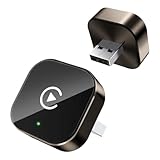
- Compact Wireless CarPlay Conversion: This stylish, compact, and lightweight wireless CarPlay adapter is easy to carry and saves space in your car. It converts wired OEM CarPlay to wireless effortlessly. It supports navigation, music, Siri, calls, and messages, offering a full CarPlay experience without interfering with your car's original functions. Say goodbye to messy cables and enjoy a cleaner, more convenient, and wireless driving experience
- Quick Setup with Auto-Reconnect Function: Super easy setup in just 3 simple steps: plug into car USB port, pair via Bluetooth, and enjoy Wireless CarPlay instantly. The adapter features auto-reconnect function that will automatically link to your phone as soon as you start the car, with no repeated manual operations needed, saving your time on every trip
- Durable Construction with Stable Signal: Made of high-quality metal casing and acrylic glass surface, the adapter is scratch-resistant and built for long-term use. Its tight-fit structural design ensures stable signal transmission even on bumpy roads or winding mountain paths. The compact, minimalist appearance seamlessly matches your car's interior without looking obtrusive
- Wide Compatibility with Factory CarPlay Systems: This adapter is only for factory-wired CarPlay vehicles. It covers 98% of factory-installed CarPlay systems on the market and works flawlessly with all eligible iPhones running iOS 10 or later versions
- FCC-Certified Safety with Lifetime Updates: FCC-certified to meet strict international safety standards, ensuring worry-free use without signal interference. We provide free lifetime firmware updates to optimize connection speed and fix potential bugs
Those statements apply to specific products. They should not be treated as a universal rule for every Tesla or every adapter. Ask the seller to confirm:
- Your Tesla model and model year
- Your infotainment or MCU generation
- Whether the browser can be used while the car is moving
- Support for your current iOS or Android version
- How audio is routed to the vehicle
- Whether Android Auto is supported if you need it
- Whether the adapter can be returned if it fails in your car
For older vehicles, check the computer information in Controls > Software > Additional Vehicle Information. That screen can identify the vehicle’s AI computer type, although it does not make the Tesla CarPlay-compatible.
Common browser-adapter problems
The adapter powers on but CarPlay does not appear
Confirm that the phone is connected to both the adapter’s Bluetooth device and its Wi-Fi network. Then reopen the adapter’s URL in the Tesla browser. A powered adapter is not necessarily a connected adapter.
Tesla reports that the Wi-Fi network has no internet connection
Some adapters create a local network for CarPlay but do not provide internet access. Tesla may therefore show a Could Not Connect to Network message even though the local CarPlay connection can work. Try opening the adapter’s web address before Tesla completes its network check, or save the network and continue.
The Tool Desk
Outbyte Driver Updater FREEScan for outdated or missing drivers - takes under a minuteDriver Scan →Outbyte PC Repair FREEClear out junk files and repair common Windows errorsFree Scan →The system stops working while driving
Browser-based adapters generally require the Tesla browser to stay accessible while the vehicle is moving. If your Tesla or its software restricts browser use while driving, the adapter may be unsuitable even if it works when parked.
The adapter Wi-Fi network is missing
Restart the adapter and the Tesla touchscreen, then check Controls > Wi-Fi. If the network was previously saved, select it and choose Forget Network before reconnecting. Tesla also warns that captive-portal Wi-Fi networks are not supported.
The display lags or disconnects
The connection involves the phone’s Bluetooth link, the adapter’s Wi-Fi network and the Tesla browser. Interference can affect any of those links. Move the adapter to a position with better reception, reduce nearby wireless interference and test it during the seller’s return period.
Tesla’s online features behave differently
When the car is connected to the adapter’s local Wi-Fi, some internet-dependent Tesla functions may not behave normally until the vehicle returns to cellular service or another Wi-Fi network. This varies by product and Tesla software, so test navigation, streaming and other features before deciding to keep the adapter.
Do these 3 things before closing this tab:
1Scan for outdated or missing drivers - takes under a minute2Repair Windows errors before they cause bigger problems3Fix the driver behind crashes, sound loss and screen glitchesRank #3

- Before You Buy - 1. Car: Requires a factory touchscreen with wired Apple CarPlay or Android Auto. Select green for CarPlay cars or blue for Android Auto-only cars. Not compatible with BMW or Tesla. 2. Phone: After the car connects, select CarPlay for iPhone or Android Auto for Android. Supports iOS 10+ and Android 13+. 3. Power: Use a 5V vehicle USB port only. Do not use a fast charger. 4. Apps: Wi-Fi is required for pre-installed apps. Additional app downloads are not supported.
- Smart Box and Smart Choice - Upgrade your in-car entertainment with this Apple CarPlay wireless adapter. Supporting CarPlay, Android Auto, and pre-installed video apps, this smart CarPlay box puts navigation, music, and video streaming effortlessly at your fingertips. Get rid of messy cables by upgrading wired CarPlay or Android Auto to wireless. It offers a perfect balance of entertainment, convenience, and practicality.
- Wireless Apple CarPlay and Android Auto - Take your drive to the next level with this CarPlay wireless adapter. Turn wired CarPlay or Android Auto into a wireless connection and say goodbye to messy cables. Connect your phone to enjoy Waze, Apple Maps, Spotify, and more directly on your car’s touchscreen. Use voice control to make calls, navigate, and play music hands-free. (Note: Requires a factory touchscreen with wired CarPlay or wired Android Auto.)
- Pre-Installed Video Apps - Turn your car into a personal cinema with this CarPlay streaming adapter. Connect to your phone’s hotspot or a Wi-Fi network to stream shows and movies on Netflix, YouTube, TikTok, Disney+, and Prime Video. Keep passengers entertained on long road trips or enjoy supported content while safely parked. (Note: App downloads are not supported.)
- Set It Once, Enjoy Forever - Simplicity perfected! Switch the wireless CarPlay adapter to your car’s matching CarPlay or Android Auto mode, plug it into the USB port, and pair your iPhone or Android phone via Bluetooth and Wi-Fi. After the first connection, your phone automatically reconnects every time you start the car—no manual setup, no hassle. (Not compatible with BMW or Tesla vehicles.)
Option 3: Add a separate aftermarket CarPlay display
A portable or permanently mounted CarPlay display gives you genuine Apple CarPlay without trying to modify Tesla’s factory touchscreen software. The aftermarket screen runs CarPlay itself, while audio is sent to the Tesla through Bluetooth, an auxiliary connection or an FM transmitter, depending on the display.
This is the most hardware-heavy solution, but it avoids the Tesla browser and MCU compatibility issues associated with Tesla-specific adapters.
Expect these compromises:
- CarPlay appears on a second screen rather than the factory Tesla display.
- You need to provide power and mount the display securely.
- FM transmission can produce lower audio quality or a delay.
- The display will not necessarily integrate with Tesla navigation, vehicle controls or the factory touchscreen.
- A poorly positioned screen can obstruct visibility or create a distraction.
Apple’s own guidance identifies an aftermarket system as the way to add CarPlay to a vehicle that does not support it from the factory. Choose a display with a stable mount, a clear field of view and an audio connection that suits your Tesla.
Option 4: Mount the iPhone
If your actual need is Apple Maps, Google Maps, Waze, Siri, music or podcasts—not specifically the CarPlay interface—a secure phone mount may be the most sensible answer.
Keep the iPhone mounted where it does not block the road, airbags or Tesla displays. Pair it with Tesla Bluetooth for calls and audio, and configure voice controls before driving. This gives you the phone’s navigation screen without paying for an adapter or adding another display, but it remains a phone setup rather than CarPlay.
Independent reader supportYour contribution helps us test, update, and keep practical guides available for everyone.Does Tesla’s Infotainment Upgrade add CarPlay?
No. Tesla’s official Infotainment Upgrade is not a CarPlay upgrade.
The upgrade is offered for eligible older Model S and Model X vehicles, primarily those built in March 2018 or earlier. Tesla describes benefits such as a faster touchscreen, a faster browser, video playback, streaming services and expanded Tesla Arcade access. Apple CarPlay is not listed as an included feature.
You can check the vehicle’s computer information at:
Rank #4

- Upgrade to Wireless CarPlay & Android Auto The 2 in 1 Wireless CarPlay and Android Auto Adapter converts your factory wired system into a wireless experience. It’s perfect for families using both iPhone and Android phones, allowing effortless switching without unplugging or swapping cables. This adapter is compatible with over 1,000 vehicle models—supporting 800+ with wired CarPlay and 500+ with wired Android Auto. Works with iPhone 6 or later and Android 11 or above devices.
- Fast Easy Setup & Auto Reconnection No app or complicated setup required. Just pair once via Bluetooth and enjoy automatic reconnection in under 3 seconds every time you drive. Powered by advanced 2.4GHz + 5GHz dual-band chips, this 2 in 1 CarPlay Adapter connects quickly—your maps, music, and calls are ready almost instantly.
- OEM-Level Wireless Performance & Vehicle Control Our car adapter maintains the full functionality and preserves the seamless experience of your original CarPlay or Android Auto system—including Apple Maps, Google Maps, Spotify, Siri, and Voice Assistant—while supporting factory controls such as touchscreen, steering wheel buttons, rotary knobs, and voice commands.
- Ultra-Compact & Flush-Fit – Clean Look, No Clutter Teeran Android Auto & CarPlay wireless adapter comes in a compact, space-saving design, about the size of a U.S. dollar coin, helping keep your car interior neat and clutter-free. The tapered design plugs in tightly and sits flush with the USB port. Once installed, the device is nearly invisible—no dangling wires, no bulky clutter, no loose connections. Includes both USB-A and USB-C extension cables to fit hidden or angled ports in different car layouts.
- Smarter & Safer – Built for Real-World Driving Designed to handle everyday use, this Android CarPlay adapter offers efficient heat dissipation vents and is certified to operate between -20°C to 70°C. Built-in protection helps prevent overheating, short circuits, and voltage surges—reducing concerns about performance or safety on long summer drives. Tested for vibration resistance to support stable performance on bumpy roads.
Controls > Software > Additional Vehicle InformationThat menu helps identify the car’s hardware. It does not activate CarPlay.
Claims to ignore when shopping
| Claim | What is actually true |
|---|---|
| “Any wireless CarPlay dongle works in a Tesla.” | Usually false. Most wireless adapters require a vehicle that already has factory wired CarPlay. Tesla-specific products use a different browser-based method. |
| “Tesla has CarPlay now.” | There is no released native Tesla CarPlay feature as of August 9, 2026. Reports of development or planned support are not the same as an owner-accessible feature. |
| “The Infotainment Upgrade adds CarPlay.” | It adds Tesla hardware and infotainment improvements, not Apple CarPlay. |
| “Tesla Bluetooth is basically CarPlay.” | Bluetooth handles audio, calls and some phone data. It does not project the CarPlay dashboard or Apple Maps onto the Tesla screen. |
| “Every Tesla runs every browser adapter.” | Not verified. Products can have different MCU, software and browser requirements. |
Which Tesla CarPlay option makes the most sense?
| Your priority | Best fit | Main drawback |
|---|---|---|
| Reliable calls and music | Tesla Bluetooth | No CarPlay apps on the Tesla screen |
| CarPlay on the factory touchscreen | Tesla-specific browser adapter | Variable compatibility and browser dependence |
| Genuine CarPlay with less Tesla software dependence | Separate aftermarket display | Second screen and extra hardware |
| Lowest cost for navigation and phone apps | Secure iPhone mount | Not CarPlay and requires careful phone placement |
FAQ
Does Tesla support Apple CarPlay natively?
No. As of August 9, 2026, Tesla has no released native CarPlay setting or pairing workflow, and Tesla is not on Apple’s current CarPlay vehicle list.
Can I use a normal wireless CarPlay adapter in a Tesla?
Usually not. Standard wireless adapters are generally designed for vehicles that already support wired CarPlay. Tesla-specific adapters use the car’s USB connection, local Wi-Fi and web browser to display CarPlay.
What is the most reliable way to use an iPhone in a Tesla?
Pair the iPhone through Controls > Bluetooth and use a secure phone mount for navigation. Tesla Bluetooth provides calls, contacts, messages, calendar access and audio, but it does not provide CarPlay.
Will Tesla’s official Infotainment Upgrade add Apple CarPlay?
No. Tesla describes the upgrade as a hardware and infotainment improvement for eligible older Model S and Model X vehicles. It does not list Apple CarPlay as a feature.
The Bottom Line
If you specifically want CarPlay on the factory Tesla display, a Tesla-specific browser adapter is the current workaround—but check the product’s MCU, model-year and driving-browser requirements before buying.
For the fewest connection problems, use Tesla Bluetooth with a secure iPhone mount. For genuine CarPlay without depending on Tesla’s browser, install a separate aftermarket CarPlay display. Native Tesla CarPlay remains unconfirmed as a released feature and has no public launch date.
Quick Recap
Product prices and availability are accurate as of the date/time indicated and are subject to change. Any price and availability information displayed on Amazon at the time of purchase will apply.
What’s actually slowing this PC down?
Pick the symptom - the matching free tool is one click away.




