Recommended Free Tools
If your car plays music and handles calls but will not read text messages aloud, the connection type determines the fix. Apple CarPlay relies on Siri, Android Auto uses its message-notification and voice-assistant controls, and Bluetooth-only systems need explicit message-access support. Start by identifying which one is active.
If your car plays music and handles calls but will not read text messages aloud, the problem is usually not the speakers. First identify how your phone is connected:
- Apple CarPlay: Siri announces and reads messages.
- Android Auto: message notifications appear on the car screen and Gemini or Google Assistant can read them aloud.
- Bluetooth only: message reading works only if both the phone and stereo support the necessary message-access features, commonly Bluetooth Message Access Profile (MAP).
A Bluetooth connection that plays music does not automatically support text-message access. Follow the section for your connection type, then use the parked-car test near the end to determine whether the failure is caused by notifications, permissions, the voice assistant, the audio path, or the stereo itself.
First determine what is failing
There are two different problems: the message may not be reaching the car, or it may reach the car without being spoken.
Quick wins for a faster PC:
Clear out junk files and repair common Windows errorsFree Scan →Scan for outdated or missing drivers - takes under a minuteDriver Scan →Repair Windows errors before they cause bigger problemsFix Now →#1 Best Overall

- 54W High Power Fast Charging, 4-Port Synchronous Charging: Nulaxy Bluetooth car adapter integrates PD36W and QC18W, offering a high-speed and efficient charging solution. Its innovative four-port design supports parallel charging of multiple devices, effortlessly overcoming battery anxiety and enhancing charging efficiency.
- Technological Leadership, Revolutionary Bluetooth 5.3: The iphone fm transmitter for car radio uses the latest Bluetooth 5.3 technology, significantly improving connection speed and data transmission efficiency. Enhanced sound quality ensures rapid and stable connections, providing a clearer, smoother experience for both calls and music playback.
- Stunning Bass, Colorful Lighting Effects: One-touch activation of stunning bass effects reproduces the true texture of music, offering an unparalleled musical experience. The five-color lighting design provides accurate perception at night, ensuring easy and safe operation, making nighttime driving more relaxed.
- Voice Commands and Precise Touch Control: Our bluetooth cigarette lighter adapter supports smart voice navigation from your phone for truly hands-free driving. Its unique raised button design provides precise, sightless control, ensuring safety and convenience while driving.
- Comprehensive Safety Assurance and Wide Compatibility: FM modulator bluetooth for car provides all-around safety protection, including over-current, over-voltage, overheating, and short-circuit protection, ensuring the safety of you and your devices. Its wide compatibility supports 12V to 24V vehicle voltages, suitable for most cars. Nulaxy continues to innovate, offering industry-leading car Bluetooth adapter that ensure safety and compatibility. (Please compare the size between the transmitter and your car cigarette lighter )
| What you observe | Most likely area to check |
|---|---|
| No message notification appears on the car display | Connection type, compatibility, notification settings, permissions, or message-access support |
| A notification appears, but there is no spoken message | Siri, Gemini, Google Assistant, voice-output settings, or assistant volume |
| You cannot hear manual voice commands either | Voice-assistant audio output, stereo audio source, or vehicle infotainment software |
| Music and calls work, but messages never appear | Unsupported Bluetooth message access, blocked permission, messaging-app settings, or stereo limitations |
When testing, raise the stereo volume while Siri, Gemini, or Google Assistant is speaking, not while music is playing. Many vehicles manage spoken-assistant audio as a separate audio session. This is a diagnostic step rather than a guarantee that every vehicle has a separate volume control.
Fix text messages that are not announced through Apple CarPlay
1. Turn on Announce Messages
On a current iPhone, open:
Settings > Notifications > Announce Notifications > CarPlay
Turn on Announce Messages. The available options can also control when announcements begin and which Messages notifications Siri announces. Depending on the iOS release, you may be able to limit announcements to time-sensitive or direct messages, or allow all supported notifications.
Also check the corresponding setting in CarPlay itself:
CarPlay > Settings > Announce Messages
Menu names can vary slightly with iOS and vehicle software versions. If a setting is missing, check the iPhone’s main Settings app and the vehicle owner’s manual.
2. Confirm that the iPhone is actually using CarPlay
Being paired for Bluetooth calls or music is not the same as being connected to CarPlay. Select the CarPlay connection on the vehicle’s display and confirm that the CarPlay interface appears.
If CarPlay does not start:
- Confirm that your vehicle or stereo supports CarPlay.
- Update iOS and the vehicle or head-unit software where updates are available.
- For wired CarPlay, try a different data-capable USB cable and another USB port.
- Inspect the iPhone charging port for debris that could prevent a reliable data connection.
- Restart both the iPhone and the vehicle’s infotainment system.
Apple’s CarPlay troubleshooting guidance also recommends checking the vehicle manufacturer’s firmware information. A cable that charges the phone may still be unreliable for data.
Rank #2
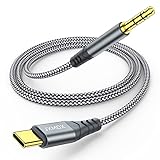
- 【Multi-function Dongle】This USB C to 3.5mm aux cable cord can easily connect your Type C devices to car stereo, home stereo, speaker, headphones or any device with standard 3.5mm audio jack or Aux-in port and offers you the freedom of listening to music.
- 【Hi-Fi Sound Quality】This usb c to 3.5mm aux cable cord adopted an advance DAC Smart Chip, offer high-definition audio, powerful noise reduction, you can get higher fidelity sound from it.
- 【Relief Strain Design】This Cable Can withstand More Than 12000 Bending Tests, Nylon Braided style not only let it look upscale and attractive but also provids maximum's durability.
- 【Wide Compatibility】 Wider compatibility than others type c to 3.5mm adapters, compatible with most of the type c phones : iPhone 16 16 Pro 16 Plus 16 Pro Max, iPhone 15 15 Pro 15 Plus 15 Pro Max, iPad pro, iPad Air, iPad mini 6, Mac book, Samsung Galaxy S24 S24+ S24 Ultra, S23 S23+ S23 Ultra, S22 S22+ S22 Ultra, S21 S21+ S21 Ultra, S20 Ultra S20 Z Flip S20+ S10 S9 S8 Plus, Note 20 10 10+ 9 8, Google pixel 4 3 2 XL, One plus 6T 7 7Pro and more.
- 【Plug and Play】This Type C to 3.5mm aux cable cord No need to install software, drive, or complex connection mode, plug and play. You may encounter compatibility issues when using this product. Please contact our customer service for technical support.
3. Ask Siri to read messages manually
While parked, use the steering-wheel voice-command button or the Siri control in CarPlay and ask Siri to read your messages. CarPlay is designed around Siri and vehicle controls rather than handling the phone while driving.
What’s actually slowing this PC down?
Pick the symptom - the matching free tool is one click away.
If Siri responds but you cannot hear the response, raise the stereo volume during Siri’s spoken reply. If Siri cannot be heard even for unrelated commands, focus on the vehicle’s voice-audio path before changing message settings.
4. Look beyond the recent CarPlay apps
If you are looking for Messages on the CarPlay display, swipe through the CarPlay app pages rather than checking only the recent-apps strip. Messages may be on another page even when CarPlay is working normally.
Fix text messages that are not announced through Android Auto
1. Use Android Auto’s read-aloud controls
Android Auto can show message notifications on the vehicle display. While parked, tap the notification and choose Play aloud, or ask Gemini or Google Assistant to read your messages.
If the notification appears but Play aloud produces no sound, raise the stereo volume while the assistant is speaking. Then test an unrelated voice command. If no assistant response is audible, investigate the infotainment audio output rather than only the messaging app.
PC Slower Than It Used to Be?
A free scan shows the junk files, broken settings and background clutter dragging Windows down - then fixes them in one click.Free scan · Windows 10 & 11Crashes, No Sound, or Screen Glitches?
Random freezes, missing sound and display glitches usually trace back to one bad driver. Find and replace yours safely.Free scan · under a minute2. Allow notifications from the messaging app
On the phone, open the notification settings for the app that receives your messages and confirm that notifications are enabled. Make sure they are not configured as silent notifications if you expect an audible announcement.
Android menu labels differ between phone manufacturers and Android versions. Look for a path similar to:
Rank #3
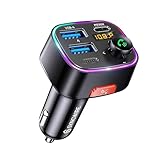
- [Humanized Ambient Light Switch Design] - Indulge in a delightful driving experience with our trendy rainbow light design. Immerse yourself in fun while having the convenience of easily turning off the light by double pressing the red "B" button when not needed. Enjoy the captivating ambiance of the rainbow lights and have full control over your driving atmosphere.
- [Upgraded Bluetooth 5.4 Technology] - The latest Bluetooth 5.4 technology, optimizing the transmission delay and connection defect problems, Bluetooth 5.4 will bring you a faster, more stable and smarter connection with less sound quality loss, uninterrupted calls and music experience. It takes only 1 second to complete pairing, and no need to repeat pairing after the first successful pairing with your device.
- [Intelligent Dual USB Ports & Fast Charging] - Coming with 2 USB ports(PD 36W and USB A 12W), can charge two devices simultaneously. Built-in over-current protection, over-voltage protection, intelligent temperature control, short circuit protection, it will effectively ensure safe charging.
- [Great Clear Music Streaming] - Bluetooth 5.4 provides a stable connection, while Noise Suppression (CVC) technology and echo-cancellation grant an amazing hands-free calling experience. In addition, this Bluetooth car adapter supports Bluetooth connection and USB stick connection (≤64GB).
- [Hi-Fi Deep Bass & Backlit] - Just press the button "B" and you will enjoy powerful deep bass and immersive sound. The high-fidelity Hi-Fi sound quality will also make the music more dynamic and pleasing to the ear, taking your passion for music to a new level.
Settings > Notifications > App notifications > [your messaging app]
Also check Do Not Disturb and other notification modes. A phone may receive a message while suppressing the notification that Android Auto needs to display or announce it.
Free tools Windows power users keep installed
One-click scans. No signup required.
3. Check message and notification access
Some Android Auto message experiences require the relevant Google service or Android Auto component to have notification or message access. If that access was denied or later removed, message notifications or send-and-receive functions may stop working.
For vehicles that use Google Assistant directly, verify that Assistant has notification access so it can read messages. The exact path varies, but search Android Settings for Notification access, then review the permissions for Google Assistant, Android Auto, or the relevant Google service.
4. Verify Android Auto compatibility and connection requirements
Android Auto requires a compatible vehicle or aftermarket receiver. Wired use also requires an active data connection and a suitable USB cable. Wireless Android Auto additionally depends on a compatible phone and vehicle, Bluetooth, Wi-Fi, and—on some setups—location settings.
If wired Android Auto used to work and then stopped, replace the cable before assuming the stereo has failed. Google recommends a high-quality cable, preferably short—under 1 meter (about 3 feet)—without a hub or extension. A cable can deteriorate or become unreliable even if it still charges the phone.
- Try another USB port if the vehicle has more than one.
- Use a direct connection rather than a hub, adapter, or extension.
- Restart the phone and the infotainment system.
- Check for firmware updates for an aftermarket receiver, particularly receivers from brands such as Pioneer or Kenwood.
- Update Android Auto and Google Play services if the problem began after an app or system change.
For a persistent Android Auto problem, Google’s support documentation includes a bug-report process. Vehicle-specific firmware and receiver compatibility questions are best directed to the vehicle or stereo manufacturer.
Rank #4

- 【Enjoy Wireless Streaming Music】This car Bluetooth adapter can be connected to non-Bluetooth car audio systems, home stereos, speakers, wired headphones via the 3.5mm AUX adapter; And equipped with a Bluetooth 5.3 chip for stable connection / fast transmission / wide signal range. Just pair it with your phone and start listening to your favorite music!
- 【Intelligent Noise Reduction Tech】Our Bluetooth audio receiver adopts the latest CVC8.0 Noise Cancellation and Digital Signal Processor (DSP) technologies, which can eliminate echo and block out intrusive background noise (such as wind, traffic, or crowds), providing you with crystal-clear calling sounds.
- 【Up to 16 Hours of Battery Life】The working time of this aux Bluetooth adapter is up to 16 hours when making calls or playing music. And it takes only 2.5 hours to fully charge the device by using a Type-C fast charging cable (Included in the package). In addition, this Bluetooth music adapter can be used while charging, which is very convenient.
- 【Hands-free Calling & Navigation】A built-in microphone and one “MFB” button to answer / redial / hang up / reject calls, help you make hands-free calls. And the Bluetooth audio adapter supports broadcasting voice notification from existed navigation App. You don’t have to look down the phone on the move. Make sure you drive safely!
- 【Dual Connection】The portable Bluetooth stereo adapter can be paired with 2 devices at the same time. You can enjoy your music and never worry about missing any calls. Once paired, the car receiver will automatically reconnect to your last paired Bluetooth devices, as long as they are within the wireless range.
If you use Bluetooth without CarPlay or Android Auto
Bluetooth-only message support is much less consistent than CarPlay or Android Auto. The Bluetooth SIG’s Message Access Profile (MAP) was designed for automotive systems that access, notify, browse, read, send, or use text-to-speech functions for messages. However, the vehicle must implement the profile, the phone must permit access, and the phone’s operating system and messaging app must be compatible with the stereo.
Therefore, music playback and hands-free calls do not prove that your stereo can read messages. Some factory systems support message notifications; others support only calls and media.
Try these Bluetooth-only checks
- Open the phone’s Bluetooth settings. Select the specific vehicle or stereo and look for toggles or permissions named Messages, SMS, Notifications, or Contact access.
- Check the stereo manual. Look specifically for text-message, message-notification, MAP, or text-to-speech support. Do not rely on a generic “Bluetooth enabled” specification.
- Forget and re-pair the devices. Remove the vehicle pairing from the phone and the phone pairing from the stereo. Restart both, pair again, and accept message or notification access if prompted.
- Check the active driver profile. If multiple phones are paired, make sure the vehicle is connected to the intended primary device.
- Review phone notifications. The messaging app must generate an allowed notification. Do Not Disturb, silent notifications, privacy settings, or a dismissed notification can prevent the stereo from receiving anything to announce.
If music and calls work but messages never appear after these checks, the limitation may be the stereo’s software, its supported Bluetooth profiles, phone compatibility, or the messaging app. In that situation, changing speaker settings or repeatedly adjusting the music volume is unlikely to help.
Do these 3 things before closing this tab:
1Clear out junk files and repair common Windows errors2Scan for outdated or missing drivers - takes under a minute3Repair Windows errors before they cause bigger problemsCheck phone-level notification suppression
iPhone
- Confirm that notifications for Messages are allowed.
- Confirm that Settings > Notifications > Announce Notifications > CarPlay > Announce Messages is enabled.
- Review whether Siri is set to announce only time-sensitive or direct messages rather than all supported notifications.
- Check for Focus, Do Not Disturb, driving-related privacy settings, or other modes that suppress alerts.
Android
- Confirm that notifications for the messaging app are enabled.
- Change the app’s notification category from silent to alerting if appropriate.
- Review Do Not Disturb and other notification modes.
- Check notification access for Android Auto, Google Assistant, or the relevant Google service.
Android notification menus vary by manufacturer. A message may not be announced if its notification was suppressed, dismissed before the car received it, produced by an unsupported app, or blocked by vehicle-specific privacy settings.
Run a safe, controlled test
Do this only while parked. Do not handle the phone while driving.
- Send a short SMS or other supported message to the phone from a second device.
- Note whether a notification appears on the car display.
- If it appears, use Play aloud in Android Auto or ask Siri to read the message in CarPlay.
- Raise the stereo volume while the spoken prompt is active.
- Test a voice command unrelated to messaging.
- Test music and a phone call separately.
- Write down which functions work: music, calls, voice assistant, visual notifications, and spoken messages.
| Results | What they suggest |
|---|---|
| Music, calls, and assistant voice work; no message notification appears | Notification permissions, message access, unsupported app, or unsupported stereo feature |
| Message notification appears; assistant cannot be heard | Assistant or spoken-audio volume/output problem |
| Assistant cannot be heard for any command | Vehicle audio routing, infotainment software, or stereo compatibility |
| Everything works over wired connection but not wireless | Wireless compatibility, Bluetooth/Wi-Fi setup, or wireless vehicle software |
| Everything stopped after a cable or software change | Cable, USB port, app update, operating-system change, or firmware issue |
When replacing the USB cable can help
A high-quality CarPlay and Android Auto USB data cable is a sensible purchase only when you use wired CarPlay or wired Android Auto and the connection is unreliable, drops out, or recently stopped working. Use a short, data-capable cable and connect it directly to the vehicle’s USB port.
A cable will not fix:
- Disabled Announce Messages, Gemini, or Assistant settings
- Blocked notification or message permissions
- A stereo that does not support Bluetooth message access
- A vehicle that does not support CarPlay or Android Auto
- A messaging app whose notifications are suppressed or unsupported
When an aftermarket stereo is appropriate
An aftermarket CarPlay or Android Auto head unit may be worth considering if the factory stereo has no smartphone integration or cannot provide the message features you need. It is not the first-line fix for a disabled notification setting, a bad permission, or a worn USB cable.
The Tool Desk
Outbyte PC Repair FREEClear out junk files and repair common Windows errorsFree Scan →Outbyte Driver Updater FREEFix the driver behind crashes, sound loss and screen glitchesFind Drivers →Before buying, verify all of the following for your exact make, model, year, trim, and existing stereo:
- Dash opening and physical fit
- Wiring harnesses and any required adapters
- Steering-wheel voice and audio controls
- Factory backup-camera integration
- Amplifier, parking-sensor, and other vehicle-system compatibility
- Wired versus wireless CarPlay or Android Auto support
- Availability of firmware updates
- Whether professional installation is needed
Aftermarket receivers are a supported Android Auto route, but compatibility and update information come from the receiver manufacturer. For a complex installation, use a vehicle-specific car-audio retailer or qualified installer rather than assuming the replacement is plug-and-play.
Best Value

- 🎵Stream Music, Podcasts, Navigation and hands-free calls in Any Car : The LIHAN Bluetooth 5.3 FM transmitter streams any audio APP from your phone through car's FM radio — no AUX port needed.
- 📡Designed for Crowded City FM Spectrums : Find a clear channel in minutes, Anti-interference technology reduces FM noise, the tunable range (88.1–107.9 MHz) lets you lock onto a clean local frequency.
- 📞Hands-Free Calling with CVC Noise Cancellation : Answer, reject, hang up, or redial with a single button press. The built-in CVC echo-canceling microphone filters out road noise and wind so your callers hear you clearly.for daily commutes, Ideal for work calls, and family conversations on the road. Automatically switches from music to hands-free call mode — no tapping your phone. When the call ends, music resumes instantly.
- 🔋 Charge Devices During Road Trips Real-Time & Battery Voltage Monitor : The LED display shows your car's battery voltage for 3 seconds on startup warning system to catch a weakening battery before it fails.Dual USB charging ports allow convenient charging for phones, GPS devices, and passengers while listening to music. Works with both 12V and 24V vehicles, making it suitable for cars, SUVs, trucks, and long-distance driving.
- 🚗Easy Setup and More Compatibility : Simply auto reconnect after the first paired. Transform any older car into a wireless audio hub.Supports Bluetooth, USB drive, TF card, and MP3/WMA/WAV formats. Compatible with iPhone, iPad, Samsung Galaxy, Android phones, tablets, and most Bluetooth-enabled devices.
When to contact the manufacturer
Contact the vehicle manufacturer or stereo manufacturer when:
- The manual does not clearly state whether message notifications or MAP are supported.
- CarPlay or Android Auto compatibility is unclear for your exact model and trim.
- The infotainment system needs a firmware update.
- A factory reset or re-pairing did not restore a feature that previously worked.
- Music, calls, and visual notifications work but spoken assistant audio is missing across multiple phones.
- An aftermarket receiver needs model-specific wiring, firmware, or steering-wheel-control guidance.
Have the vehicle’s make, model, year, trim, stereo model, phone model, operating-system version, connection method, and test results ready. Those details are more useful than simply reporting that “Bluetooth works.”
Safety reminder
Make all setting changes and troubleshooting tests while parked. CarPlay and Android Auto are intended to support hands-free, vehicle-controlled interaction; do not pick up or operate the phone while driving.
Frequently Asked Questions
Can every car read text messages over Bluetooth?
No. Bluetooth music and hands-free calling do not guarantee that a stereo can access or read text messages. The phone and stereo must support compatible message-access features, such as Bluetooth MAP, and permissions must be allowed.
How do I make CarPlay read my text messages aloud?
On iPhone, open Settings > Notifications > Announce Notifications > CarPlay and turn on Announce Messages. Confirm the same feature is enabled in CarPlay’s Settings, then test Siri while parked.
Why does Android Auto show messages but not read them aloud?
Check that the messaging app’s notifications are enabled and alerting, verify notification or message access for Android Auto or Google Assistant, and use Play aloud or ask Gemini/Google Assistant to read the message.
Will a new USB cable fix text messages not playing through my car stereo?
Only if you use wired CarPlay or wired Android Auto and the connection is unreliable or has stopped working. A cable will not fix disabled notifications, blocked permissions, unsupported Bluetooth messaging, or an incompatible stereo.
The Bottom Line
The fastest fix is to identify the connection first. For CarPlay, enable Announce Messages and test Siri. For Android Auto, enable messaging notifications and access, then use Play aloud or Gemini/Google Assistant. For Bluetooth-only systems, confirm that the stereo actually supports message access—music and calls alone are not enough. If a wired connection is failing, try a short, high-quality data cable; otherwise, investigate permissions, firmware, or vehicle compatibility before buying hardware.
Quick Recap
Product prices and availability are accurate as of the date/time indicated and are subject to change. Any price and availability information displayed on Amazon at the time of purchase will apply.




